
OneStream Blog - Linking Cube Views on a Dashboard
Understanding the Linked Cube Views in OneStream

I wanted to give my users the ability to query 2 custom relational XFC tables set up in the Application Database, without having to create any SQL code and all through a dashboard. They needed to be able to select a field from the first table and then dynamically query the second table based on the selection from the first table. No Problem!
To do this I made use of “linked” Grid Views populated with parameter driven SQL Query Data Adapters.
Example of the dashboard with 2 Grid View components on it.
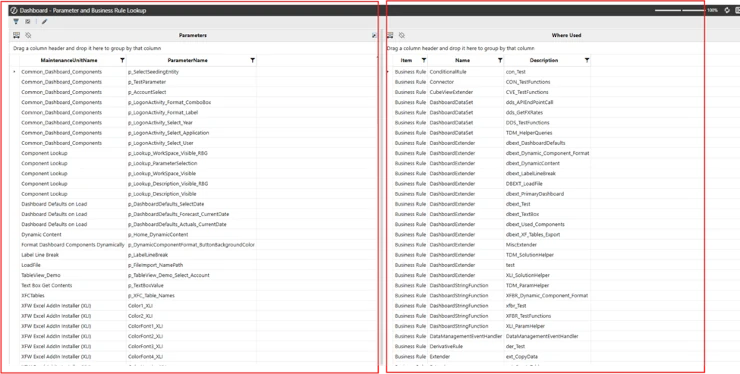
Example of the same dashboard, with a field selected on the left Grid View, showing the results of that selection on the right Grid View.

How to set this up
1. Create 2 Grid View Components.

2. Create an Input Value Parameter (this will be used to pass the selection from the first grid view to the second grid view).
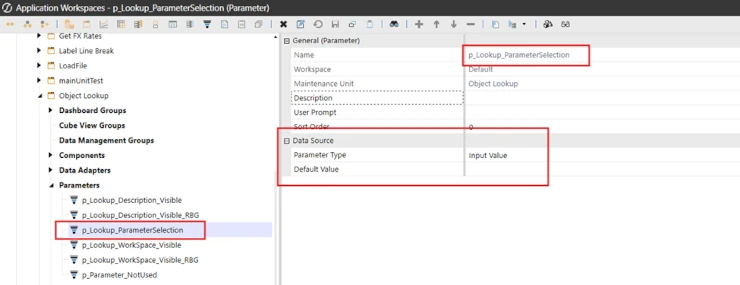
3. Configure the first Grid View component’s (think of it as the selection grid view or the source grid view Bound Parameter property with the parameter that just created.
Set the User Interface Action to refresh the Dashboard component containing the second Grid View Component. (It needs to be refreshed after its data is updated)

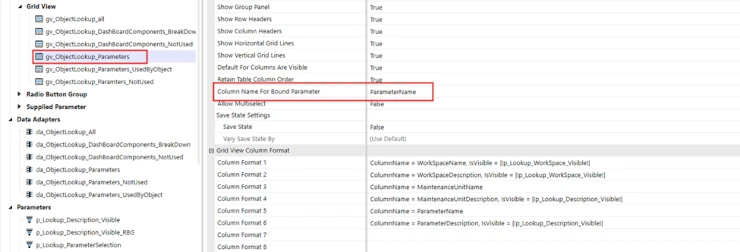
4. Set the Column Name for Bound Parameter Property to the column name containing the field value, that you want to pass to the second grid view. When a user selects this field the input parameter will be populated with its value and the second grid view will be refreshed. This parameter value will be used in the SQL query in the data adapter used in the second grid view.
5. Create two SQL Query Data Adapters
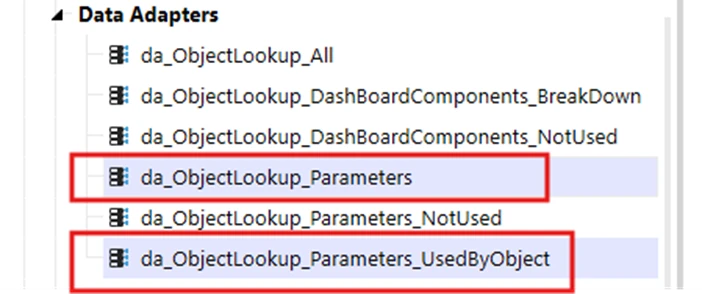
The SQL in the first one queries the first table and brings back all of its results and they are shown in the first Grid View.

6. “Parameterize” the SQL in the second adapter that returns filtered results. Note in the screen shot below where I have the parameter name in the SQL Query. This parameter is populated whenever a user selects a field from the first grid view which refreshes the second grid view which runs this query.

7. Add these Grid Views to your Dashboards!
Key Points to Remember
- 1. 2 Grid Views using SQL Query Data Adapters.
- 2. The “Source” Grid View needs a Bound Parameter.
- 3. The “Source” Grid View needs its “Column Name for Bound Parameter” property set to the column that you want to pass the field value to the second grid view. It’s easy to miss this step as this property is far down in the property list and easily overseen.
- 4. “Parameterize” the SQL in the data adapter for the second grid view with the parameter that the first grid view is bound to.
- 5. Set the “Selection Changed User Interface Action” in the source grid view to refresh the second grid view.
Contact MindStream Analytics

Want to learn more about OneStream? Please complete the form below and we'll get back to you shortly.
Featured Webinar

Join us for a compelling webinar as we delve into the revolutionary capabilities of OneStream Software for corporate performance management (CPM).
OneStream: The Power of One Platform for Intelligence Finance
Partner SpotLight

OneStream CPM
OneStream aligns to your business needs and changes more quickly and easily than any other product by offering one platform and one model for all financial CPM solutions. OneStream employs Guided Workflows, validations and flexible mapping to deliver data quality confidence for all collections and analysis while reducing risk throughout the entire auditable financial process.