Adding a Button to Export XFC Table Data to CSV

Dim strLabelText As String = "Hello this is a bunch of text to" &vbCr & "illustrate a point about text wrapping"In a prior Blog, “Creating a Dashboard to Display XFC Tables” I outlined how to create a dashboard that will display the contents of your applications XFC tables in a dashboard using a SQL Table Editor, this was based on a client request. The client, after seeing the dashboard, wanted to be able to export the data from the table to a CSV file. Yes, it’s possible to right click on a SQL Table editor and select export to CSV and it will export the data to a CSV File.
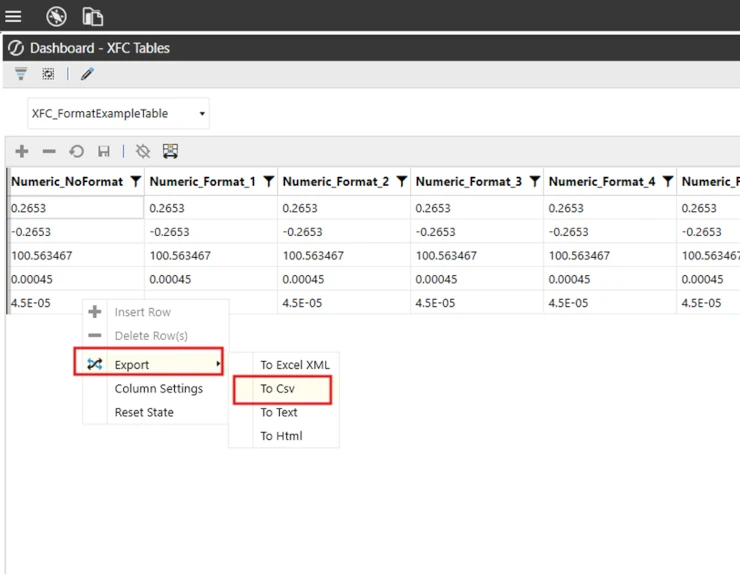
The issue with this approach is that a SQL Table Editor, for performance reasons, pages the data that is returned. For large data sets you can have many pages of data that are only retrieved once you navigate to that page in the SQL Table Editor. The right-click and export to CSV only exports the data for the tab that you are on.
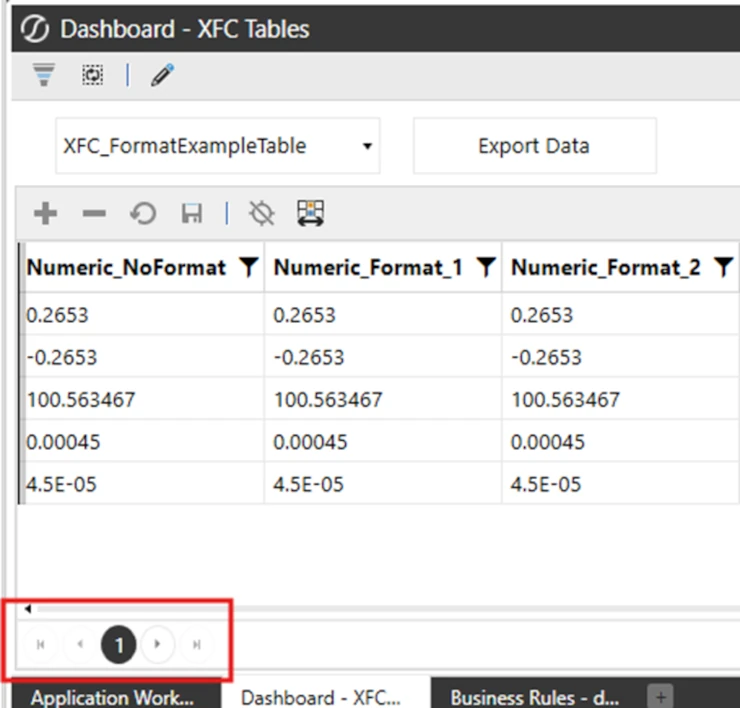
So, what if your users want to export the Entire contents of the table they have selected to a CSV file? There is a solution, there typically is in OneStream. This can be accomplished through a button and a Dashboard Extender.
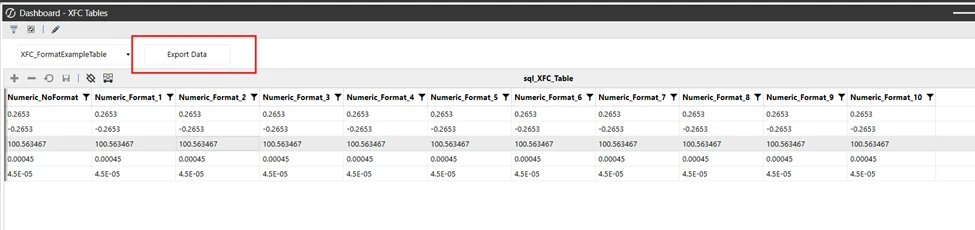
Step 1. Add a button to your dashboard. In this screen shot I am adding a button to a dashboard that I created for a previous blog.
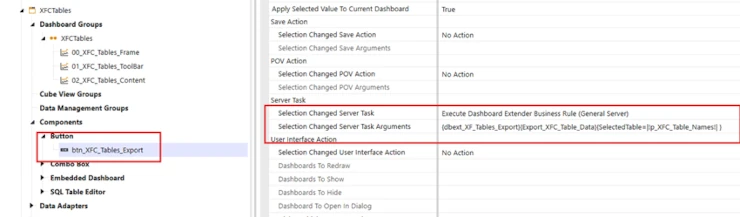
Step 2. Set the Button to run a Dashboard Extender, passing in the Parameter that holds the Table name selected from the Combo Box, as a name value pair.
Step 3. Create a Dashboard Extender that will query the Application database for the selected table, get all the contents of that table, load it into a Data Table, then write the contents of that Data Table to a CSV file in the Application Database, accessible through File Explorer.
The next steps are all within the Dashboard Extender that you just created.
Step 4. Create a variable to hold the value of the selected table name.
'Get name of selected Table
Dim strTableName = args.NameValuePairs.XFGetValue("SelectedTable")
Step 5. You will need a SQL Query that uses the selected table name to return all the contents of the selected table to a Data Table.
'Create SQL Query that will get all the contents of the selected table
Dim sql As New System.Text.StringBuilder
sql.AppendLine($"
                SELECT * FROM {strTableName}
                ")
'Return the SQL table and load the contents into a Data Table in memory
Dim dt As new DataTable()
Using dbConnApp As DbConnInfo = BRApi.Database.CreateApplicationDBConnInfo(si)
    dt = BRApi.Database.ExecuteSql(dbConnApp, sql.ToString, False)
End Using
At this point you will now have a Data Table in memory. The next step will be to write the contents of that Data Table to a CSV File. The code that I use will create multiple CSV files if there are more than one million records in the Data Table. In this case, this was done because the users were opening the CSV file in Excel, and I needed to take the row limitations of Excel into account.
Step 6. Define the CSV file name and the file path. In this case I am using the table name as the file name. Note how I am defining the file path with the user’s name. The function si.UserName returns the user name with a space between the first and last name, this space needs to be stripped out as the application database file path does not have a space in it.
'Create the variables that will degine the export File name and Path
'Note home the file path includes the User Name and strips oout any spaces from the User Name
Dim strFileName As String = strTableName
Dim strFilePath As String = $"Documents/Users/{stringhelper.RemoveSystemCharacters(si.UserName,false,false)}"
Step 7. Create a String Builder object that will hold the contents of the Data Table. It is this object that will be used to create the CSV file. Then using AppendLine, add the file header record to the String Builder using the Data Table column names. This is optional, depending on whether you want the header record in the CSV file or not.
'String Builder Object that will hold the contents of the Data Table that was populated from the SQL Table query
Dim fileAsString As New System.Text.StringBuilder
'Create the Header row for the export file based on the Column Names in the Data Table
fileAsString.AppendLine(String.Join(",",dt.Columns.Cast(Of DataColumn).Select(Function(x) x.ColumnName)))
Step 8. Now you need to loop through the contents of the Data Table and add them to the String Builder using the ItemArray method of the Data Table. Appending each record to the String Builder with a comma between each field. A comma because we are building a CSV file, which is comma delimited.
'Loop through all the Data Table rows, appending them to the String Builder Object
For Each dr As DataRow In dt.Rows
fileAsString.AppendLine(String.Join(",",dr.ItemArray()))
Step 9. The final step is to write the contents of the String Builder to the Application Database, in the Users folder. Note that in this example the write occurs either when the end of the Data Table is reached or if a million records has been reached, to manage file size. The write uses BRApi.FileSystem.InsertOrUpdateFile. To use this function the String Builder needs to be converted to bytes then passed into an XFFile object.
'Check to see if either a million records have been added to the String BUilder Object
'Or the end of the Data Table has been reached
'In either case the String Builder Object is written to the Application File FOlder using brapi.FileSystem.InserOrUpdateFile
'If the Data Table contains more than 1 million records the process creates a seperate CSV files for each group of a million
If (intY + 1) Mod 1000000 = 0 Or intY = dt.Rows.Count = 1 Then
Dim fileAsByte() As Byte = Sytem.Text.Encoding.Unicode.GetBytes(fileAsString.ToString)

Dim xfFileDataInfo As New XFFileInfor(fileSystemLocation.ApplicationDatabase,$"{strFileName}{intWriteCount}.csv",strFilePath)
Dim xFFileData As New XFFile(xfFileDataInfo,String.Empty,fileAsByte)

brapi.FileSystem.InsertOrUpdateFile(si,XfFileData)

intWriteCount = intWriteCount + 1
FileAsString.AppendLine(String.Join(",",dt.Columns.Cast(Of DataColumn).Select(Function(x) x.ColumnName)))
End If

intY = intY + 1
The code in its entirety
Public Function Export_XFC_Table_Data(ByVal si As SessionInfo, ByVal globals As BRGlobals, ByVal api As Object, ByVal args As DashboardExtenderArgs) as Object
Try

'Get name of selected Table
Dim strTableName = args.NameValuePairs.XFGetValue("SelectedTable")

'Create SQL Query that will get all the contents of the selected table
Dim sql As New System.Text.StringBuilder
sql.AppendLine($"
                SELECT * FROM {strTableName}
                ")
'Return the SQL table and load the contents into a Data Table in memory
Dim dt As new DataTable()
Using dbConnApp As DbConnInfo = BRApi.Database.CreateApplicationDBConnInfo(si)
    dt = BRApi.Database.ExecuteSql(dbConnApp, sql.ToString, False)
End Using

'String Builder Object that will hold the contents of the Data Table that was populaed from the SQL Table query
Dim fileAsString As New System.Text.StringBuilder
'Create the Header row for the export file based on the Column Names in the Data Table
fileAsString.AppendLine(String.Join(",",dt.Columns.Cast(Of DataColumn).Select(Function(x) x.ColumnName)))

'Create the variables that will define the export File name and Path
'Note home the file path includes the User Name and strips oout any spaces from the User Name
Dim strFileName As String = strTableName
Dim strFilePath As String = $"Documents/Users/{stringhelper.RemoveSystemCharacters(si.UserName,false,false)}"

'String Builder Object that will hold the contents of the Data Table that was populaed from the SQL Table query
Dim fileAsString As New System.Text.StringBuilder
'Create the Header row for the export file based on the Column Names in the Data Table
fileAsString.AppendLine(String.Join(",",dt.Columns.Cast(Of DataColumn).Select(Function(x) x.ColumnName)))

Dim intWriteCount As Integer = 1
Dim intY As Integer = 0

         For Each dr As DataRow In dt.Rows
             fileAsString.AppendLine(String.Join(",",dr.ItemArray()))
            'Check to see if either a million records have been added to the String Builder Object
            'Or the end of the Data Table has been reached
            'In either case the String Builder Object is written to the Application File Folder using brapi.FileSystem.InserOrUpdateFile
            'If the Data Table contains more than 1 million records the process creates a seperate CSV files for each group of a million
            If (intY + 1) Mod 1000000 = 0 Or intY = dt.Rows.Count = 1 Then
                Dim fileAsByte() As Byte = Sytem.Text.Encoding.Unicode.GetBytes(fileAsString.ToString)

                Dim xfFileDataInfo As New XFFileInfor(fileSystemLocation.ApplicationDatabase,$"{strFileName}{intWriteCount}.csv",strFilePath)
                Dim xFFileData As New XFFile(xfFileDataInfo,String.Empty,fileAsByte)

                brapi.FileSystem.InsertOrUpdateFile(si,XfFileData)

                intWriteCount = intWriteCount + 1
                FileAsString.AppendLine(String.Join(",",dt.Columns.Cast(Of DataColumn).Select(Function(x) x.ColumnName)))
             End If

             intY = intY + 1

          Next
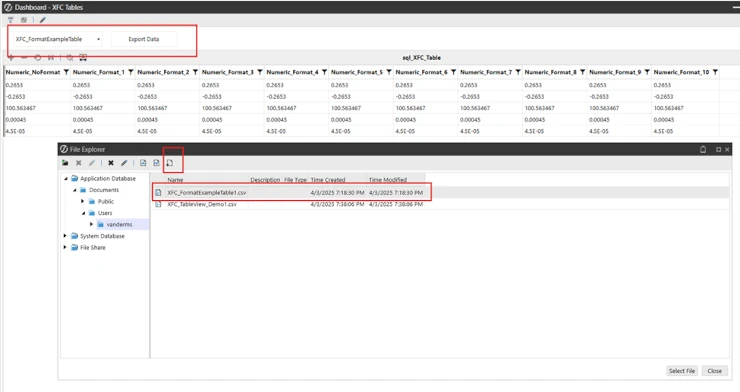
Now when the button on the Dashboard is clicked, the dashboard extender is executed and creates a CSV file in the Application Database folder, under the Users folder. If the user then selects the file and clicks on the download file button in File Explorer, the file will be downloaded to their local desktop.
Contact
MindStream Analytics
Want to learn more about OneStream Software? The consultants at MindStream Analytics are here to help you take your consolidations and reporting to the next level.