
OneStream Blog - Formatting Cube View Columns Based on Variance with XFBR
Understanding the Cube View Formatting Challenge in OneStream

The Use Case: You have been asked to format the background color in a column within a cube view, based on the variance of the cell amounts in the column to the cell amounts in another data column on the same cube view. You think to yourself, “No problem, cube views support conditional cell formatting. There are a lot of options within the Cell Format selection box. I’ve got this.”
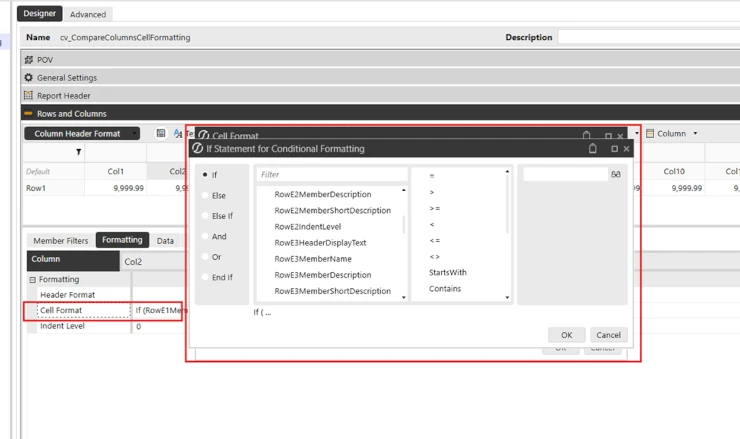
Then you start to look through the options within the If Statement for Conditional Formatting builder and realize that there are no options to compare against another column. “What? How is this not built in functionality?” you think to yourself. No, there is no selection within cube view formatting to select another columns data cell amount. So how can you do this then? Using an XFBR.
The Solution: Build out an XFBR that retrieves the data cell amounts for the 2 columns that you want to base your variance analysis on and return all the row members that need formatting. Combine that list of row member names with the “If (RowE1MemberName in” cell formatting function and you can have data cell formatting that is based on the variance between 2 data cells.
1. Build out your cube view. In this example I have Accounts in the Rows and 12 months in the columns. I want to format the background color of column 2 (Feb 2021) a different color if the cell amount is less than what is in column 1 (Jan 2021).
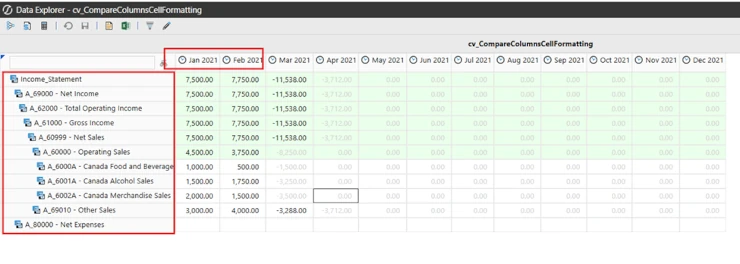
2. Build out an XFBR that will be called from the cell formatting in column 2 (Feb 2021). This XFBR needs to loop through all the cell amounts in column 1, compare those to the cell amounts in column 2 and return a list of all accounts where the cell amounts in column 1 are lower than the cell amounts in column 2.
3. The first step in the XFBR is to define the list of accounts that you need to loop through.
Public Function CubeViewComponent(ByVal si As SessionInfo, ByVal globals As BRGlobals, ByVal api As Object, ByVal args As DashboardStringFunctionArgs) As String
Try
'Get the Account Descendant List (used in Cube View) which will be used to loop through
Dim AcctList As List(Of MemberInfo) = BRApi.Finance.Metadata.GetMemberUsingFilter(si,"CanadaAccounts","A#Income_Statement.TreeDescendantsInclusive", True)
In this case I am using GetMembersUsingFilter to return the same list of accounts as in the cube view. This returns a MemberInfo object for every account which will be used further along in the XFBR to get the account member names.
4. Create the variable that will hold the comma separated list of account names that will be returned to the cube view cell formatting function.
' Variable that will hold all Accounts that have a Greater Value - This is what is passed back to the Cube View Formatting Statement
'Set the value to a blank space so if no accounts have a greater value, a blank space will be returned and the Formatting statement will not error out.
Dim strVarianceOff As String = ""
5. Now loop through all of the MemberInfo objects, using GetDataCellUsingMemberScript functions to return the cell amounts from the 2 columns for each account in your MemberInfo objects. Evaluating each intersection for month 1 versus month 2 and if month 2 amount is less than month 1, append that account name to the string variable.
'Loop through each account
For Each acct As MemberInfo In AcctList
 Dim strAcctName As String = acct.Member.Name.ToString
 'Get Month 1 Value
 Dim objMonth1 As DataCellInfoUsingMemberScript = BRApi.Finance.Data.GetDataCellUsingMemberScript(si, "CAN_ACT", E#ONT_County1:C#None:S#Actual:T#2021M1:V#Periodic:A#" & strAcctName & ":F#None:0#For"
 Dim decMonth1 As Decimal = objMonth1.DataCellEx.DataCell.CellAmount

 'Get Month 2 Value
 Dim objMonth2 As DataCellInfoUsingMemberScript = BRApi.Finance.Data.GetDataCellUsingMemberScript(si, "CAN_ACT", E#ONT_County1:C#None:S#Actual:T#2021M2:V#Periodic:A#" & strAcctName & ":F#None:0#For"
 Dim decMonth2 As Decimal = objMonth2.DataCellEx.DataCell.CellAmount

 'Compare the Values of Each Account - Month 1 vs Month 2 amounts.
 'If Month 1 Value is greater than Month 2 value, add it to the return string

 If decMonth1 > decMonth2 Then
    strVarianceOff = strVarianceOff & strAccntName & ","
 End If
Next
6. The final step is to remove the ending comma from the variable that is holding any accounts added in the prior step.
'remove the ending comma from the return string
strVarianceOff = strVarianceOff.Substring(0,strVarianceOff.Length - 1)
7. The code in its entirety.
Public Function CubeViewComponent(ByVal si As SessionInfo, ByVal globals As BRGlobals, ByVal api As Object, ByVal args As DashboardStringFunctionArgs) As String
Try
'Get the Account Descendant List (used in Cube View) which will be used to loop through
Dim AcctList As List(Of MemberInfo) = BRApi.Finance.Metadata.GetMemberUsingFilter(si,"CanadaAccounts","A#Income_Statement.TreeDescendantsInclusive", True)

'Set the value to a blank space so if no accounts have a greater value, a blank space will be returned and the Formatting statement will not error out.
Dim strVarianceOff As String = ""

'Loop through each account
For Each acct As MemberInfo In AcctList
 Dim strAcctName As String = acct.Member.Name.ToString
 'Get Month 1 Value
 Dim objMonth1 As DataCellInfoUsingMemberScript = BRApi.Finance.Data.GetDataCellUsingMemberScript(si, "CAN_ACT", E#ONT_County1:C#None:S#Actual:T#2021M1:V#Periodic:A#" & strAcctName & ":F#None:0#For"
 Dim decMonth1 As Decimal = objMonth1.DataCellEx.DataCell.CellAmount

 'Get Month 2 Value
 Dim objMonth2 As DataCellInfoUsingMemberScript = BRApi.Finance.Data.GetDataCellUsingMemberScript(si, "CAN_ACT", E#ONT_County1:C#None:S#Actual:T#2021M2:V#Periodic:A#" & strAcctName & ":F#None:0#For"
 Dim decMonth2 As Decimal = objMonth2.DataCellEx.DataCell.CellAmount

 'Compare the Values of Each Account - Month 1 vs Month 2 amounts.
 'If Month 1 Value is greater than Month 2 value, add it to the return string

 If decMonth1 > decMonth2 Then
    strVarianceOff = strVarianceOff & strAccntName & ","
 End If
Next

'remove the ending comma from the return string
strVarianceOff = strVarianceOff.Substring(0,strVarianceOff.Length - 1)

Return strVarianceOff
Catch ex As Exception
    Throw ErrorHandler.LogWrite(si, New XFException(si,ex))

End Try
End Function
8. This will return the value of strVarianceOff which will be something like this. “A_60000,A_6000A,A_6002A”
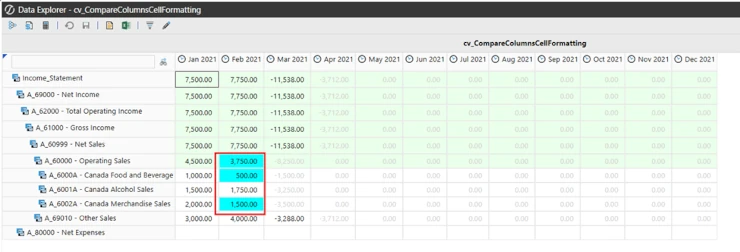
9. Now you need to build out the cell formating function on the cube view using “RowE1Member Name In”. This will evaluate for all member names (accounts in this case) that are returned by the XFBR. In this case it will change the background color to Aqua for all data cells whose amount is less than the amount in column 1.

Now you cube view cell variance formatting that is comparing the cell amounts from one data column to another data column!
Contact MindStream Analytics

Want to learn more about OneStream Software? Please complete the form below and we'll get back to you shortly.
Featured Webinar

Join us for a compelling webinar as we delve into the revolutionary capabilities of OneStream Software for corporate performance management (CPM).
OneStream: The Power of One Platform for Intelligence Finance
Partner SpotLight

OneStream CPM
OneStream aligns to your business needs and changes more quickly and easily than any other product by offering one platform and one model for all financial CPM solutions. OneStream employs Guided Workflows, validations and flexible mapping to deliver data quality confidence for all collections and analysis while reducing risk throughout the entire auditable financial process.