Understanding the Challenge of Line Breaks in OneStream Labels

The other day I was doing a very routine task, adding and formatting a Label component on a dashboard. The Label component contained a line of text that needed to wrap over 2 lines. “No Big Deal”, you are thinking to yourself, there is a display format setting, UseTextWrapping, that will do this for you, simply set it to True.
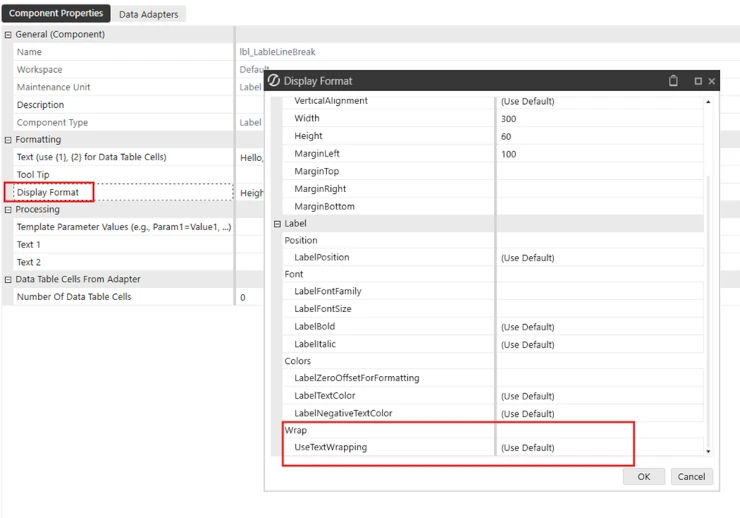
Yes, that works. However, what if you want to specify where to break the line of text? I’ve got you there, you can’t, but wait for it and I will show you a way of accomplishing this.
OneStream dynamically breaks the line of text in the Label based on the size of the Label component.
For example, I have a Label component set up in the screen shot below. The line of text is longer than the width of the Label component.
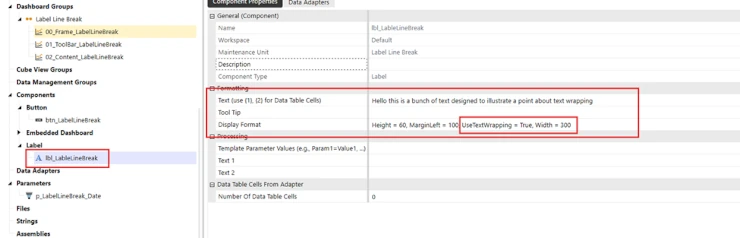
OneStream breaks the line of text after the letter “a”.
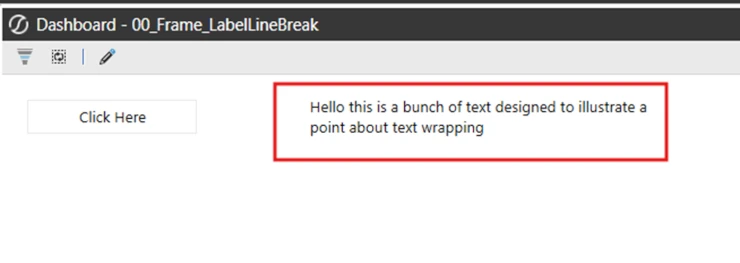
However, what if you wanted to break the line in a different spot, from the display format properties you can’t do this.
Step-by-Step Guide to Implementing a Line Break
You can do this using business rules and a parameter approach.
1. Create a Parameter and place the Parameter into the text properties box of the Label component.
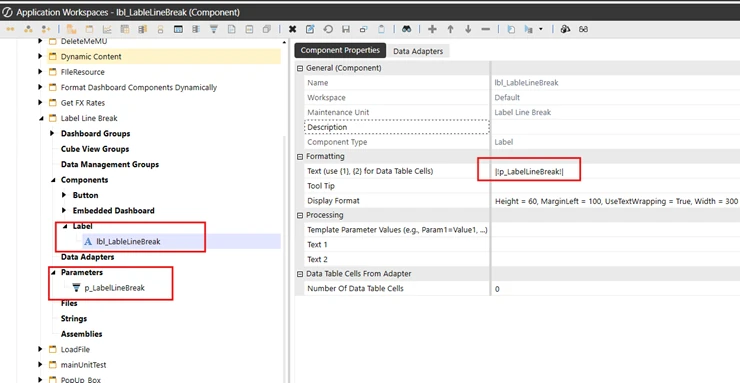
2. Next you need to create a business rule that populates the value of the parameter. For demonstration purposes I am using a Button component that runs a dashboard extender.
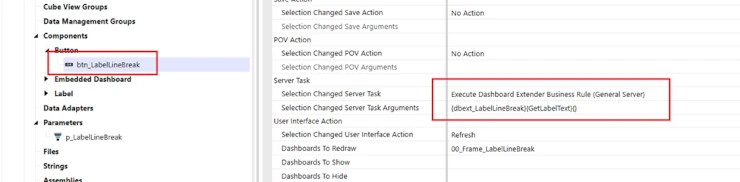
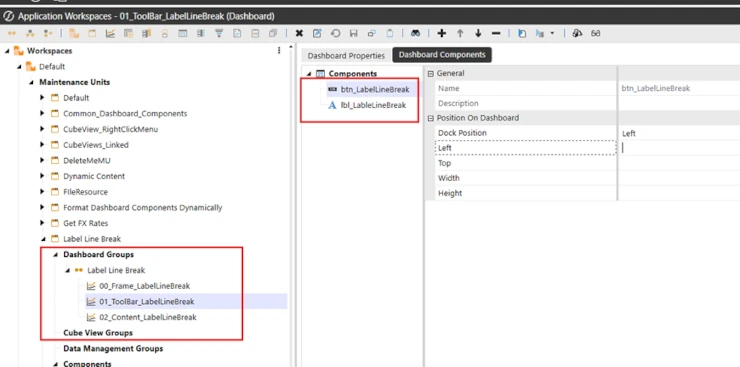
3. For demonstration purposes I have a simple dashboard with a button and a label component on it.
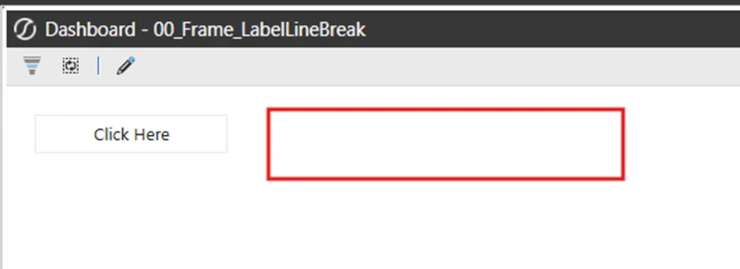
Which when run, will show the following. The label isn’t visible yet because the Literal Parameter that contains the text value has not been populated yet.
4. Next create the Dashboard Extender that the Button will run. Its in this spot that the line break will be added to the text that the Label will show using a parameter. In your Dashboard Extender create a String variable to hold your line of text for the Label. However where you want a line break, concatenate into the string a Visual Basic Constat for a carriage return, vbCr.
Dim strLabelText As String = "Hello this is a bunch of text to" & vbCr & "illustrate a point about text wrapping"5. Then write that String to your Literal Parameter.
brapi.Dashboard.Parameters.SetLiteralParameterValue(si,False,args.PrimaryDashboard.WorkspaceID,"Default.p_LabelLineBreak",strLabelTextThe entire function is shown below.
Public Function GetLabelText(ByVal si As SessionInfo, ByVal globals As BRGlobals, ByVal api As Object, ByVal args As DashboardExtenderArgs) As Object
Try

Dim strLabelText As String = "Hello this is a bunch of text to" & vbCr & "illustrate a point about text wrapping"
brapi.Dashboard.Parameters.SetLiteralParameterValue(si,False,args.PrimaryDashboard.WorkspaceID,"Default.p_LabelLineBreak",strLabelText)
Return Nothing
Catch ex As Exception
Throw ErroHandler.LogWrite(si, New XFException (si, ex))

End Try
End Function
The Literal Parameter, once the Business Rule is called, will hold your line of text with a break where you have specified.
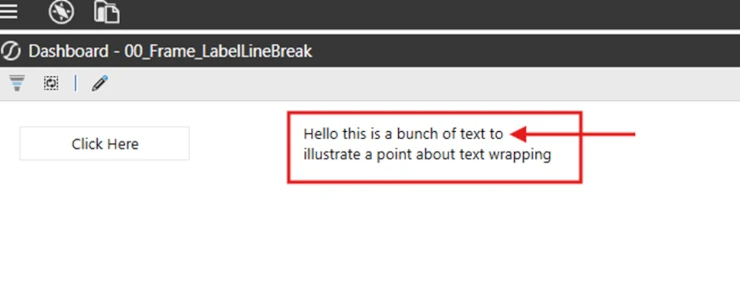
Here is the example with the business rule run, notice the line break.
To add to this, if you are not populating the parameter from code, you can still get this to work.
Alternative Method: Adding Line Breaks Without Code
Step 1. Open a text editor such as Word or Notepad++, type in your line of text for your label and enter a carriage return where you want the text to break.
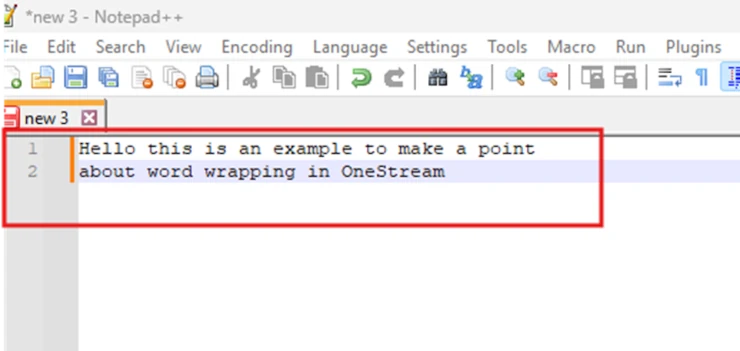
Step 2. Copy and paste both rows.
Step 3. In OneStream, select your parameter and the three ellipses in the Default Value property. Then paste your copied text from your text editor into the pop-up box that appears.
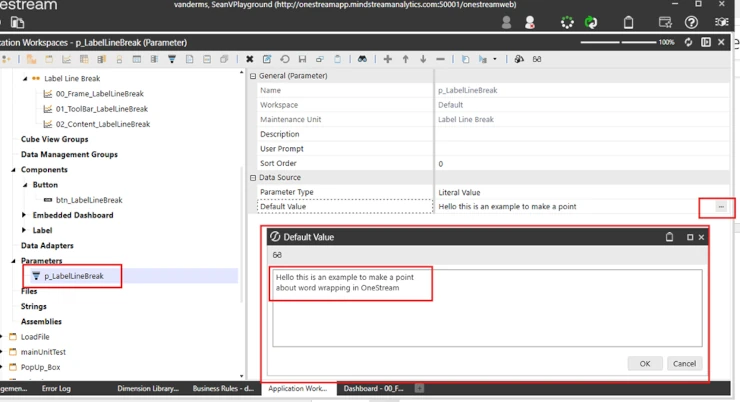
Now when you run your dashboard you will have a line break where you want it, without needing a business rule to accomplish this.