Learn how to Join Data Tables using Data Sets and Defined Relationships

I’ve set up a lot of Dashboards containing Grid Views populated with a Data Adapter. With the Data Adapter being populated with data from a Relational Data Table. This is an easy way to expose the contents of relational data within a Dashboard. Filters can be applied, giving the users the ability to filter the data shown in the Grid View. Typically, I have done this using Combo Boxes or some other component that gives the Users a pick list of options that would then change a parameter value. With that parameter being used within the SQL statement that drives the Data Adapter. This has always been a straightforward process.
Behind the scenes the data adapter can do this either of two ways, using a Method Command Type or a SQL Command Type. The SQL command Type will run a SQL query directly against the relational source while the Method Query will call a data set business rule typically querying a relational source, then creating a VB.Net data table that is returned to the data adapter.
You are probably saying to yourself, “so far so good, I got this!”. However, what if you want to combine the results of 2 related data sources and return those through a single data adapter/grid view combination? You are probably saying “No Problem, its 2 relational sources, I’ll just use a join in the data query!”. Ok, now what if the business case changes and the 2 relational sources are in separate environments that can’t be accessed through a SQL Join? What if one is an application database table and the other is in an external database? In this case there is no easy way to create a SQL Join. Or even, I had this situation recently, one data source was a relational table, and the other was a Json returned data source from an external web API call. Now how are you going to join them?
VB.Net Datasets and defined relationships to the rescue. A Data Set can contain multiple tables and can contain defined relationships between those tables. With this you can query the Dataset, based on the defined relationship between those tables and return a single data table that holds those combined or joined data tables, or just some fields of data out of those data tables.
For this example, I am using 2 tables out of the application database, one of which is a custom table. However, I could just as easily query an external table using brapi.Database.CreateCustomExternalDbConnInfo.
Table 1 returns Accounts and their Descriptions from the internal Member Table
SELECT MemberId, Name, Description, DimId FROM dbo.Member WHERE DimTypeId = '5' ORDER BY Name;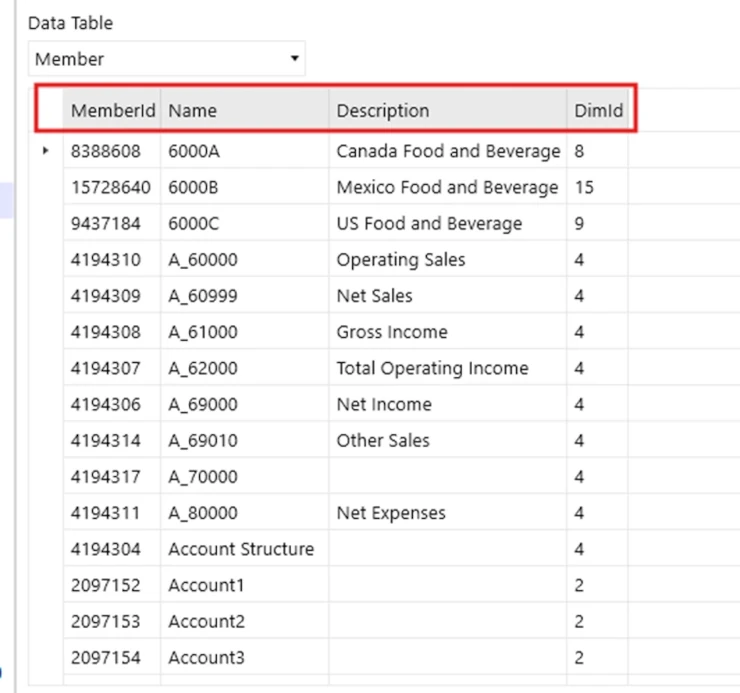
Table 2 returns data from a custom table
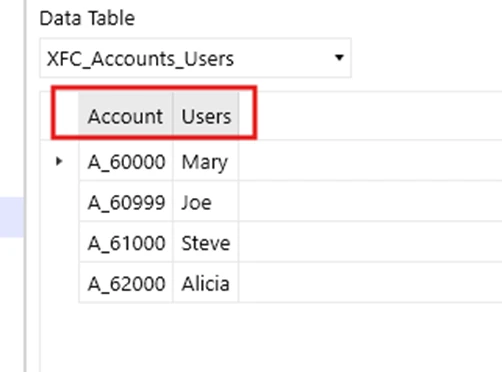
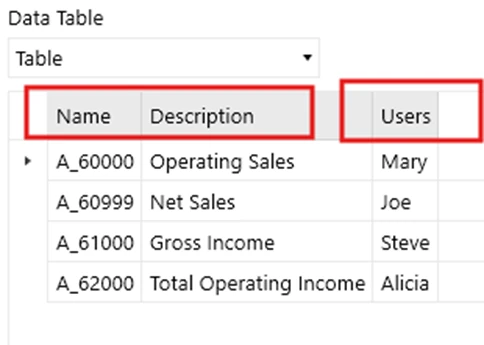
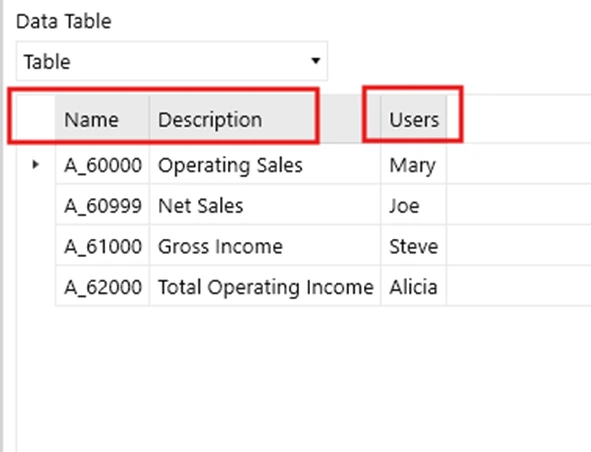
What I want to do is join those 2 tables on the Name field in Table 1 and the Account field in Table 2 and return just Name, Description and Users to a Grid View through a Data Adapter.
Desired Result
So how do I do this?
- Setup a Method Type Data Adapter that calls a Dashboard Data Set Business Rule.
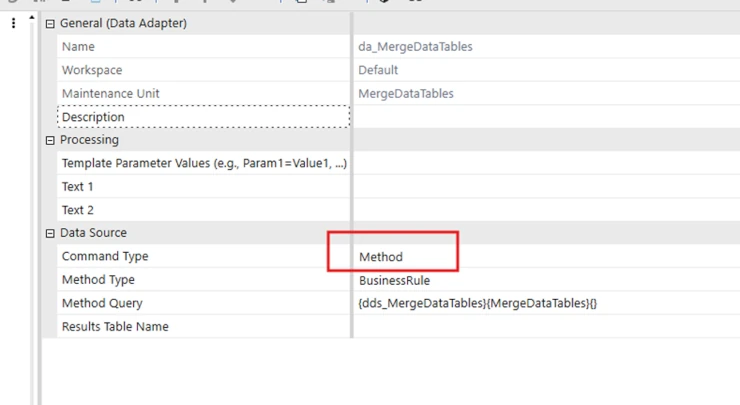
- Create the Dashboard Data Set Business Rule and in that Business Rule create your 2 source Data Tables.
'First Data Table
Dim dtMembers As New DataTable
Using dbConn As DBConnInfo = BRApi.Database.CreateApplicationDbConnInfo(si)
    Dim sql As New Text.StringBuilder
    sql.AppendLine($"SELECT MemberId, Name, Description, DimId FROM dbo.Member WHERE DimTypeId = '5' ORDER BY Name;")
    dtMembers = BRApi.Database.ExecuteSql(dbConn,sql.ToString,False)
Eng Using

'Second Tata Table
Dim dtMemberNames As New DataTable
Using dbConn As DBConnInfo = BRApi.Database.CreateApplicationDbConnInfo(si)
    Dim sql As New Text.StringBuilder
    sql.AppendLine($"SELECT Account, Users FROM dbo.XFC_Accounts_Users;")
    dtMemberNames = BRApi.Database.ExecuteSql(dbConn,sql.ToString,False)
Eng Using- Create the Data Tablet that will hold the joined results and be the return.
Dim dtResult As New DataTable
dtResult.Columns.Add("Name")
dtResult.Columns.Add("Description")
dtResult.Columns.Add(""Users)- Create the Data Set and add the source Data Tables to it.
'Data Set that holds the data tables
Dim dataSetMerged As New DataSet
dataSetMerged.Tables.Add(dtMembers)
dataSetMerged.Tables.Add(dtMemberNames)- Now define the relationship between the 2 tables. These are the fields from each data table that you will use to join the data on, think of it as being like a SQL Join.
Dim relation As New DataRelation("AccountNameRelation"),dataSetMerged.Tables(0).Columns("Name"),dataSetMerged.Tables(1).Columns("Account"),False)
dataSetMerged.Relations.Add(relation)- At this point you have a Data Set containing 2 Data Tables and a defined Relationship. The next step is to loop through the rows of one data table, getting the related rows from the second data table, based on the defined relationship, and add the desired fields as a row to your return data table.
' Loop through the rows of the on data table and get related "parent" rows based on the relationship
For Each childRow As DataRow In dtMemberNames.Rows
    Dim filterValue As String = childRow("Users").ToString()
    Dim parentRows As DataRow() = childRow.GetParentRows(relation)

    "Get the fields from each table that you want and add them to the return data table
    For Each parentRow As DataRow In parentRows
        dtResults.Rows.Add(parentRow("Name"),parentRow("Description"), childRow("Users"))
    Next
Next

Return dtResult
The code in its entirety
Public Function MergeDataTables(ByVal si As SessionInfo, ByVal globals As BRGlobals, ByVal api As Object, ByVal args As DashboardDataSetArgs) As DataTable

Try

'First Data Table
Dim dtMembers As New DataTable
Using dbConn As DBConnInfo = BRApi.Database.CreateApplicationDbConnInfo(si)
    Dim sql As New Text.StringBuilder
    sql.AppendLine($"SELECT MemberId, Name, Description, DimId FROM dbo.Member WHERE DimTypeId = '5' ORDER BY Name;")
    dtMembers = BRApi.Database.ExecuteSql(dbConn,sql.ToString,False)
Eng Using

'Second Tata Table
Dim dtMemberNames As New DataTable
Using dbConn As DBConnInfo = BRApi.Database.CreateApplicationDbConnInfo(si)
    Dim sql As New Text.StringBuilder
    sql.AppendLine($"SELECT Account, Users FROM dbo.XFC_Accounts_Users;")
    dtMemberNames = BRApi.Database.ExecuteSql(dbConn,sql.ToString,False)
Eng Using

Dim dtResult As New DataTable
dtResult.Columns.Add("Name")
dtResult.Columns.Add("Description")
dtResult.Columns.Add(""Users)

'Data Set that holds the data tables
Dim dataSetMerged As New DataSet
dataSetMerged.Tables.Add(dtMembers)
dataSetMerged.Tables.Add(dtMemberNames)

Dim relation As New DataRelation("AccountNameRelation"),dataSetMerged.Tables(0).Columns("Name"),dataSetMerged.Tables(1).Columns("Account"),False)
dataSetMerged.Relations.Add(relation)

' Loop through the rows of the on data table and get related "parent" rows based on the relationship
For Each childRow As DataRow In dtMemberNames.Rows
    Dim filterValue As String = childRow("Users").ToString()
    Dim parentRows As DataRow() = childRow.GetParentRows(relation)

    "Get the fields from each table that you want and add them to the return data table
    For Each parentRow As DataRow In parentRows
        dtResults.Rows.Add(parentRow("Name"),parentRow("Description"), childRow("Users"))
    Next
Next

Return dtResult

Catch ex As dtResult
    Throw ErrorHandler.LogWrite(si, New XFException(si,ex))
End Try
End Function
The result
When run through a data adapter, it shows 2 fields from Table 1 and 1 field from Table 2.
This is powerful functionality that can be used when you need to join related data sources and can’t use a SQL Join.
Contact
MindStream Analytics
To learn more about OneStream and how MindStream Analytics can help you improve your planning, reporting, and analytics, please fill out the form below.