Resolve User Management After an OCI 2.0 Migration
OCI 2.0 Migration can change how users, identity domains, and groups are administered. Before modifying accounts, confirm the error, identify the Domain Admin, and document the permissions that must be restored.
In the aftermath of Oracle’s recent transition from the Oracle My Services platform to the advanced OCI (Oracle Cloud Infrastructure) 2.0, users are facing challenges accessing the new web interface.
Particularly, tasks related to user management, such as creating, changing roles, or deleting users, have become sources of frustration for many. If you find yourself grappling with these challenges, rest
assured – solutions are at hand.
Confirm the User Management Access Issue
To ensure that you’re indeed facing the challenge of not being able to edit, create, or delete users – especially if you had admin privileges in the past – let’s double-check your access to the OCI
console. Follow these simple steps:
-
1. To log into OCI console visit the Oracle Cloud sign-in page at https://www.oracle.com/cloud/sign-in.html.
-
2. When prompted, enter your domain or Account Name.
-
3. Navigate to the Users section.
-
4. Click on “Here”.
-
5. Input your admin credentials.
-
6. Ideally, you should be welcomed by the initial screen of the OCI console without encountering any issues:

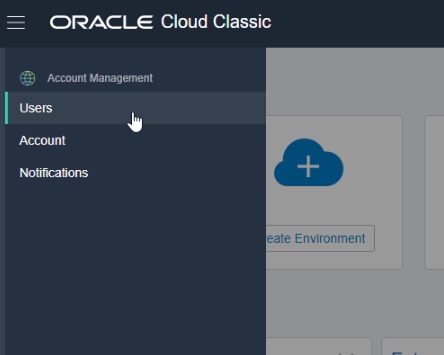
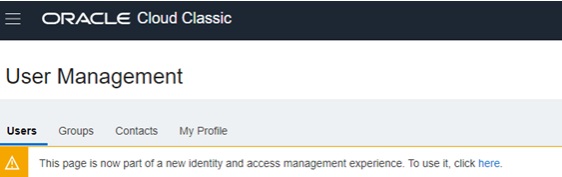
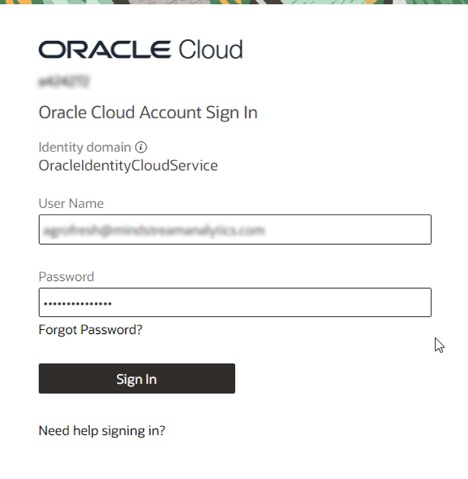
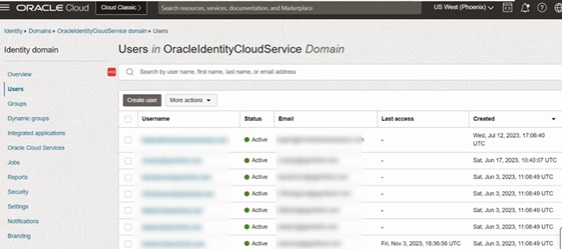
However, if you come across the concerning “You are not allowed to Perform this Action” error message, it’s a clear indication that the issue is real, and your permissions may have gone missing. Let’s
get to the bottom of this!
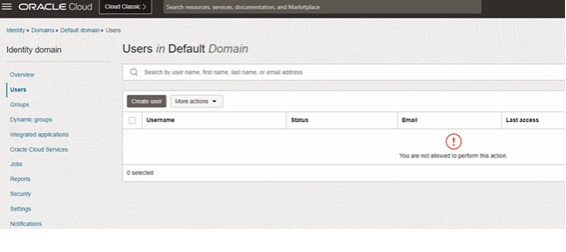
Resolving the User Management Challenge
Now that we’ve confirmed the hiccup in accessing user management features, it’s time to fix it. To do this, you’ll need to figure out who the Domain Admin user is for your company. If you’re unsure about
this information, no worries. You can ask Oracle Support to lend a hand and provide you with this info.
Once you’ve identified your Domain Admin, kindly ask them to follow these steps and grant you the necessary permissions:
-
1. Navigate into Users and select the user you want to provide permissions to.
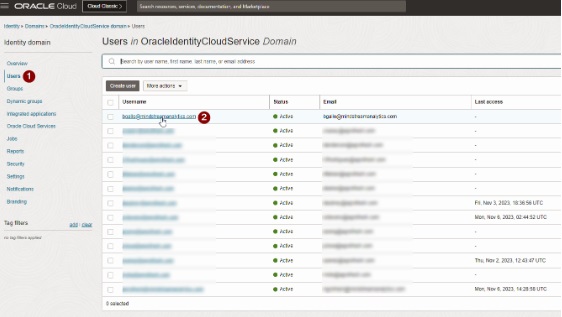
-
2. Click on Groups and then choose Assign User to groups. Select all groups that contain the term “Admin” to assign them to the user. Note: Group names may vary between companies, so they might not be
exactly the same as shown in the image below.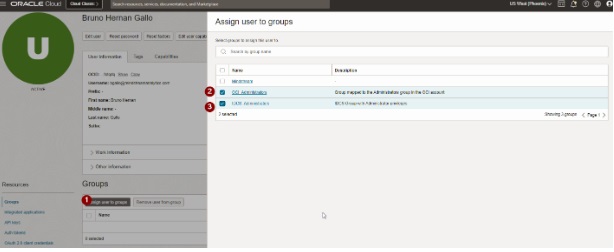
If you discover that you’re supposed to be the sole user assigned as Domain Admin for your company and still can’t view all the users in your environment, or if the user designated as Domain Admin is
no longer with your company, it’s crucial to escalate the issue to Oracle Support for additional assistance.
Secure OCI 2.0 Migration Checks
Test the OCI 2.0 Migration with an administrator account and a standard account. Verify that each user sees only the required functions and that assigned groups match the user’s responsibilities.
Do not assign every Admin group without reviewing its scope. Apply least privilege, record who approved each change, and retain evidence of the access test.
After correcting permissions, sign out, sign in again, and repeat the create, edit, and delete user tasks. If the Domain Admin is unavailable, open a case with Oracle Support.
Include identity management in the post-OCI 2.0 Migration validation checklist so access changes are found before they disrupt critical operations.
OCI 2.0 Migration Resources
Continue with Oracle Cloud Infrastructure services, Oracle Analytics Cloud, Oracle Analytics Cloud Service, Oracle EPM Cloud,Oracle managed services. Also review the official Oracle user-management documentation.
Need assistance with this process? We’ve got your back! Just have a chat with our Sales Manager, and we’ll provide you with all the necessary help to iron out this inconvenience. We’re here for you!