Configure Admin-Only Visibility for a OneStream Dashboard Button
A OneStream Dashboard Button can protect sensitive actions without creating separate dashboards for every role. In this example, the Save control remains available to the Administrator group and hidden from everyone else.
The solution combines a Dashboard XFBR business rule with BRapi.Security.Authorization.IsUserInAdminGroup. The function evaluates the signed-in user and returns a Boolean value that the isVisible property can consume directly.
In the Dashboard below I want to hide the Save button from anyone not in the Administrator Security Group.
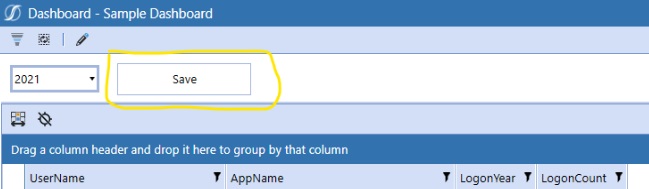
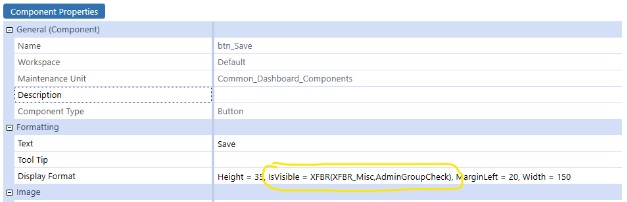
The visibility of a button on a dashboard is controlled by the display format component property.
isVisible = False The button will not be seen.
isVisible = True The button will be seen.
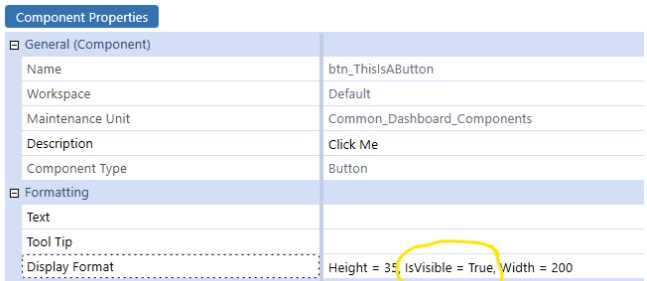
What we want to do is toggle the isVisible value of True or False of this button, based on if a user is in the Administrator security group. This will toggle the visibility of the button on or off based on the security rights of the user.
Build the XFBR Security Check
One way is through the use of a Dashboard XFBR and the BRapi.Security.Authorization.IsUserInAdminGroup function. This function returns a Boolean True or False value when passed a UserName.

- 1.The first step is to create a function within a Dashboard XFBR Business Rule.
- 2. Give the function a name that will be used in the XFBR call from the button. In the example below I called it “AdminGroupCheck”
- 3. In this custom function call BRapi.Security.Authorization.IsUserInAdminGroup. You will need to pass in the User Name of the logged in user. This can be accomplished by using the OneStream function si.UserName which dynamically retrieves the logged in user name as a string. Have the function return its Boolean value to a Boolean Variable. In the example below I am returning it to blIsAdmin.
- 4. Set the function return to the Boolean variable (Return blIsAdmin in the example below). A screenshot of a computer code
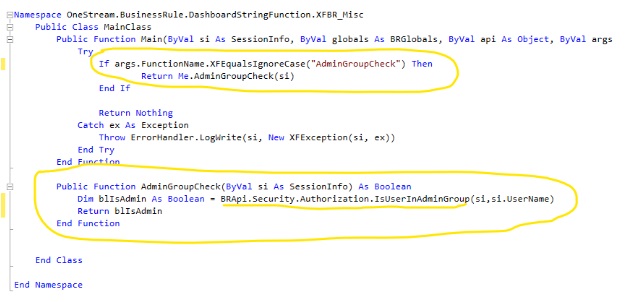
- The final step is to call this XFBR in the isVisible Display Format property of the Button. (don’t forget to save your change)
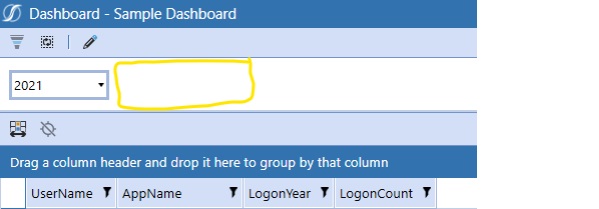
Now if a user who is not an Administrator navigates to this dashboard, they will not see the Save Button.
OneStream Dashboard Button Security Checklist
Test the OneStream Dashboard Button with both an administrator account and a standard account. Confirm that the rule returns True only for the intended group and that the hidden control leaves no confusing instructions or empty layout.
Keep the authorization logic in a clearly named function. Document the business rule name, the component that calls it, and the owner of the security group. This record makes later reviews and troubleshooting faster.
Hiding a control improves the experience, but it does not replace process security. Validate permissions, workflows, and server-side operations as well. The OneStream Dashboard Button should remain a presentation layer aligned with those protections.
Before publishing, save the rule, refresh the dashboard, and test in a new session. Check capitalization, parameters, and XFBR call syntax. After an upgrade, retest the OneStream Dashboard Button with both user profiles.
Include this scenario in each environment validation. Compare development, test, and production to confirm that group and rule names match. Record the result, the account used, and the date. This gives the team clear evidence instead of relying on an informal visual check.
Related OneStream Resources
Continue with these guides: create a non-administrator user in OneStream, configure a dashboard pop-up button, add a help-file button to a dashboard, control data input with a business rule, create an application backup. Also consult the official OneStream documentation to confirm behavior for your release.