OneStream dashboard help button keeps instructions and templates available exactly where users complete their work.
Recently at a client site I had built out a dashboard that allowed users to upload a file and the data from that file would then be loaded to their forecast data for a particular scenario. The process involved providing the users with a CSV File template with step-by-step instructions on how to upload a file using that dashboard. I had walked the users through the process over a Teams meeting call and provided the CSV Template file to be used. Afterwards I thought, why not attach the step-by-step instructions to the dashboard for future reference by the users? Wouldn’t that be better than burying the instructions in some dusty online folder somewhere?
OneStream Dashboard Help Button Solution
Configure the Button to Open a Help File
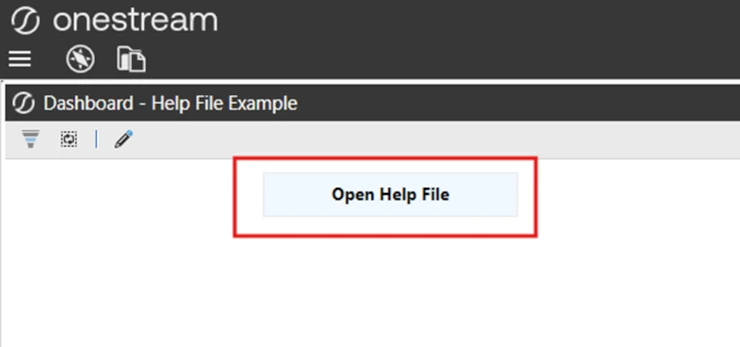
1. Create a standard button within your Maintenance Group.
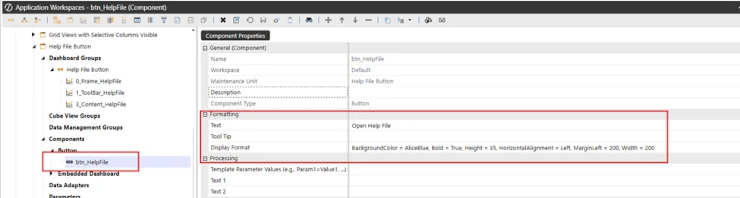
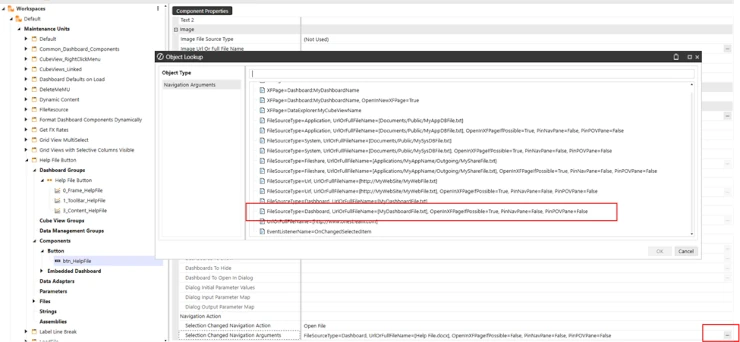
2. In the Navigation Action section of properties for the button, select Open File for the Navigation Action

3. Then in the Navigation Action, from the list, in this case I selected the option to open a Dashboard File (FileSourceType = Dashboard)
4. Add the button to your dashboard toolbar.
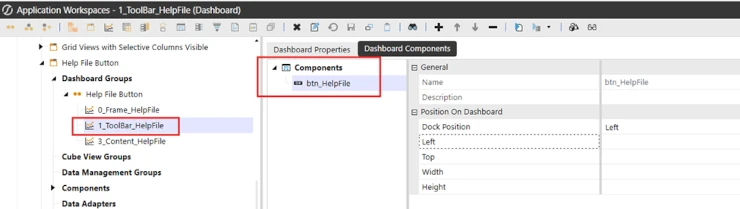
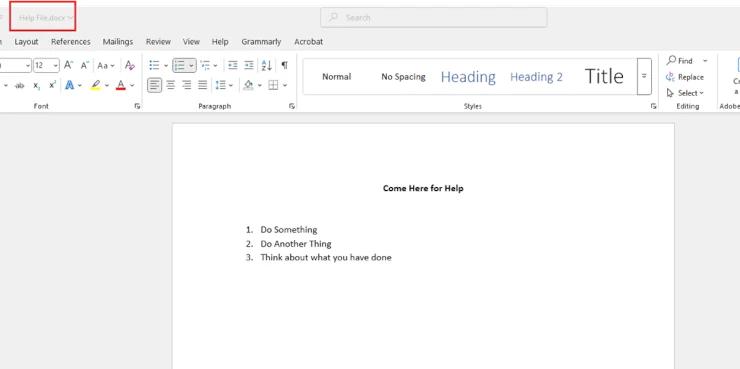
5. Create your Word Document with the Help Instructions.
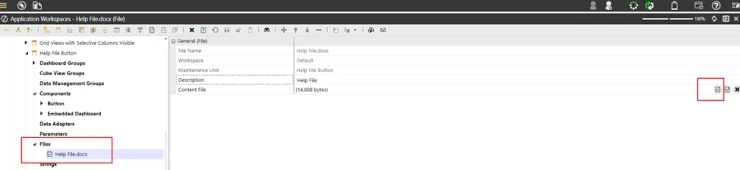
6. Create a Dashboard File Component and upload your word document to it.
7. Now in the Navigation arguments for the button set the file name parameter to the name of your Dashboard File component and change the OpenInXFPageIfPossible parameter to false.

Now if you run the dashboard and click on the Open Help File Button your word document will open!
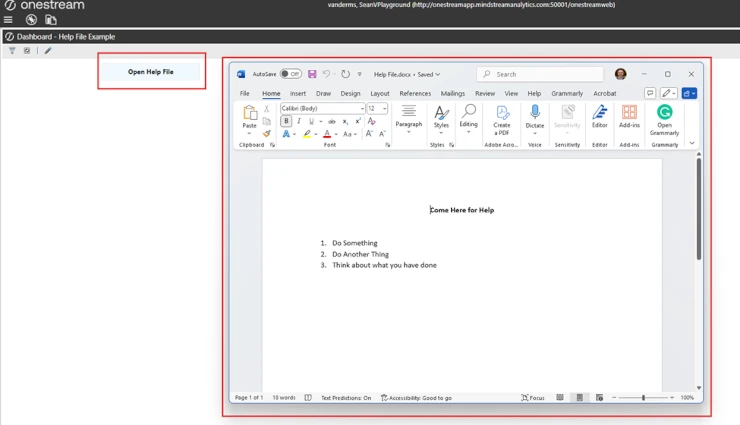
In addition, I used these same steps to add a button that would open the CSV Template file.
These easy to use steps add business value to the application, especially to users after you are no longer on the project.
Documentation is always requested, however typically it resides in a pdf or word doc in some folder or web location that after a couple of months no one can remember the location of. This process easily enhances the user experience, placing the documentation in the same location as the dashboard and easily accessible by all.
Plan the Help File and User Access
Before configuring the button, decide which instructions users need and who should maintain them. Keep the document concise, use the same labels that appear in the dashboard, and include the expected file format, required columns, validation rules, and common error messages. A short version number or revision date helps users confirm that they are reading current guidance.
Review security for the Dashboard File component and the dashboard itself. Users should be able to open the help file without receiving broader access to maintenance objects or sensitive content. Store only approved documentation, avoid credentials or confidential data, and use a predictable file name so future administrators can replace the document without rebuilding the navigation action.
Test and Maintain the OneStream Dashboard Help Button
Test the OneStream dashboard help button with a non-administrator account in the same workspace and workflow used by the intended audience. Confirm that the document downloads or opens as expected, the file name matches exactly, and browser security settings do not block the action. Repeat the test after application migrations, dashboard changes, and platform upgrades.
Assign an owner for the document and include its review in the regular dashboard release process. When procedures change, update the Dashboard File component, verify the button, and communicate the revision to users. This small governance step keeps embedded help reliable and reduces support questions.
Related OneStream Resources
Explore MindStream guidance for OneStream dashboards, OneStream reporting, OneStream implementation, OneStream training, OneStream application support, and OneStream webinars. The official OneStream documentation provides current product guidance.