OneStream Data Input: Powerful Conditional Rules
OneStream data input can be controlled at the individual-cell level when a Cube View needs more precision than the standard Modify Data setting provides.
This guide shows how Conditional Input Finance Business Rules apply read-only logic by time, account, and other point-of-view criteria while keeping performance in focus.

The Use Case: I had a cube view that needed to selectively turn on or turn off data input to specific data cells in the cube view based on certain criteria. Yes, there is the Modify Data property for the entire cube view as well as for individual columns in the cube view. However, what if you want to turn on or off input to specific data cells within a data column? Yes, it can be done!
The Solution: For this issue I decided to use Cube Business Rules, specifically Conditional Input. Conditional Input Finance Business Rules control data input by making a data cell read-only or not based on logic in the business rule. They need to be attached to the cube and fire every time a cube view is rendered. Keep in mind that since they fire for every cell in a data retrieval that performance must be a high priority. However, they allow for a code driven approach to controlling the read/write status of a data cell.
This gives administrators a precise OneStream data input control pattern without locking an entire data column.
How to Configure OneStream Data Input Rules
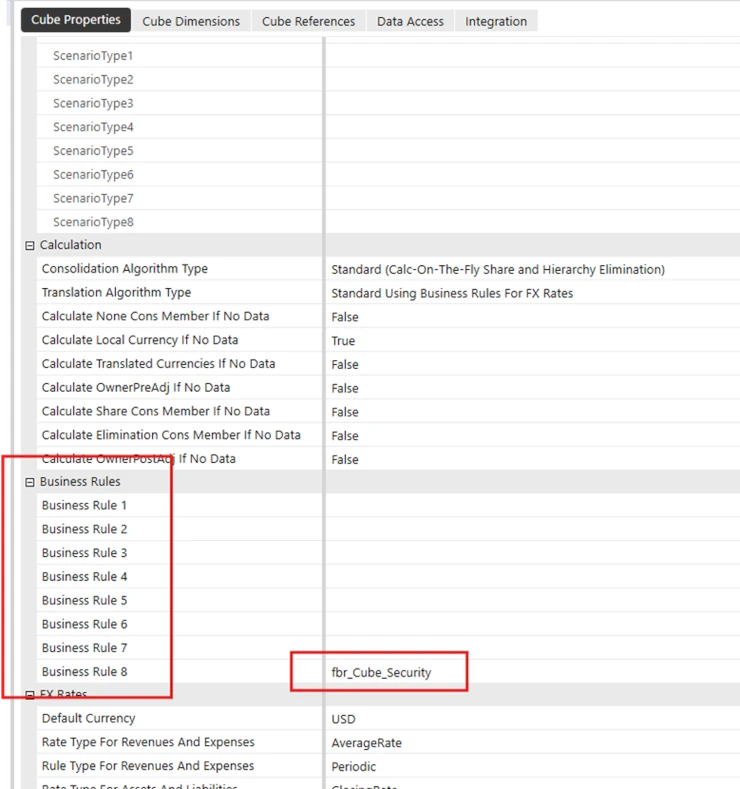
1. Create a Finance Business Rule and assign it to your cube. Under the cube properties there is a business rule section, assign it here. In my example I assigned it to Business Rule 8 (it will fire last in order).
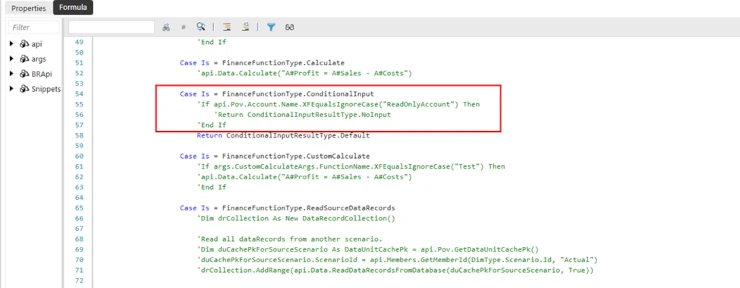
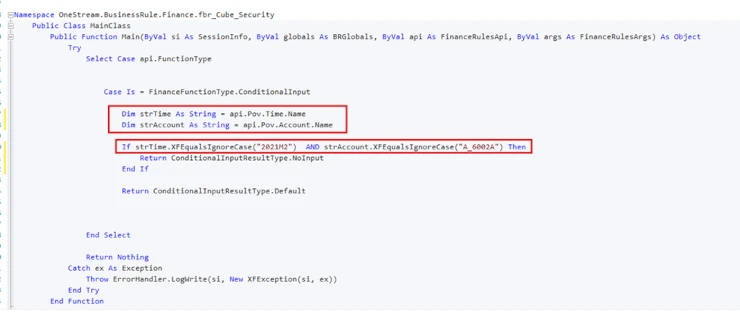
Example of the Finance Business Rule, using the Conditional Input Case.
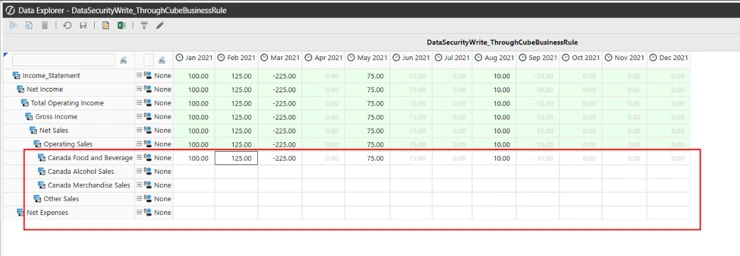
2. Create your Cube View. For this example, I want to set the conditional input status for specific accounts in the “Feb 2021” data column. I want some data cells in this column to be locked to data entry, but not all. That’s why I can’t just use the cube view “Can Modify Data” property since that applies to the entire data column.
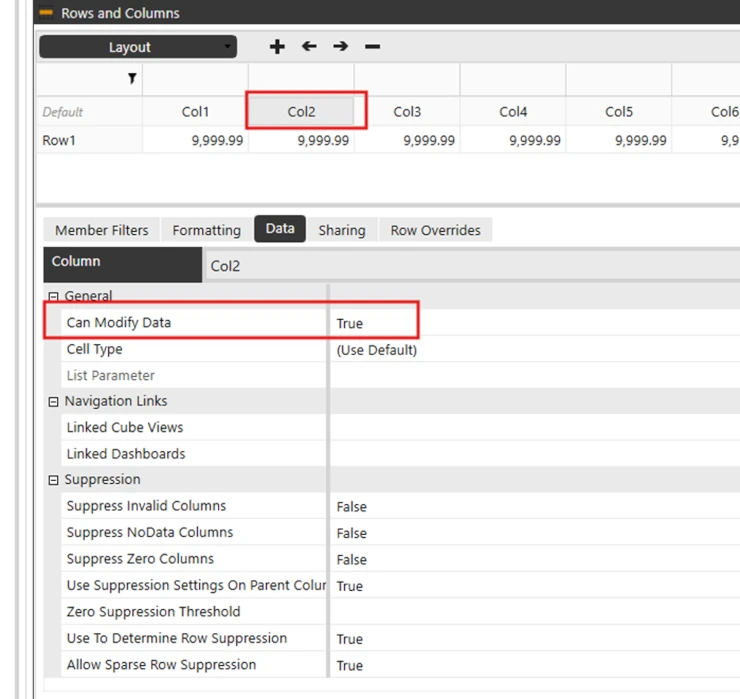
3. Ensure that the Can Modify Data property is set to True. Further access will be determined by the Conditional Input Finance Business Rule.
4. In the Conditional Input Finance Business Rule I need to test for several conditions, both Time and Account. I accomplish this using api calls such as api.pov.time.name or api.pov.account.name and assign their value to variables.
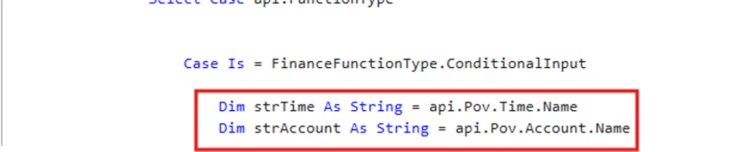
5. The next step is to conditionally test the contents of these variables and change the data input status of the data cell accordingly. For this example, I am modifying the data input status if Time equals 2021M2 and Account equals A_6002A.
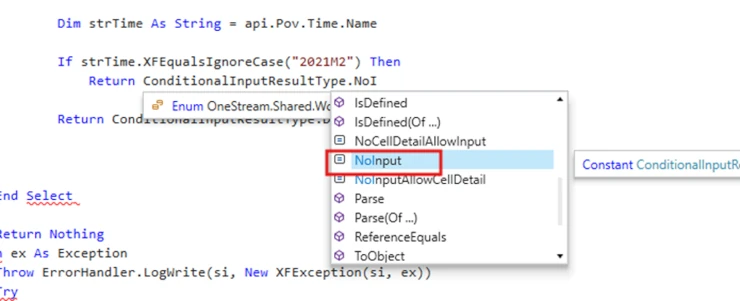
6. Then I need to return the conditional input type using ConditionalInputResultType and give it a value of NoInput.
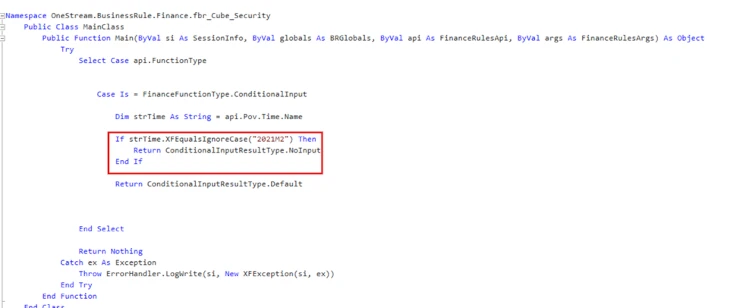
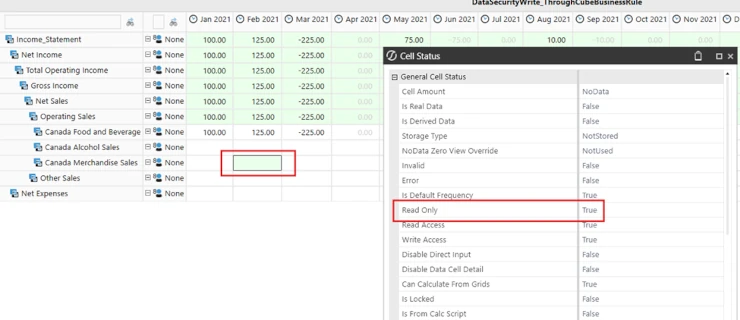
Notice how a data cell has a property in its Cell Status of Ready Only with a value of true or false. This is what the code changes.
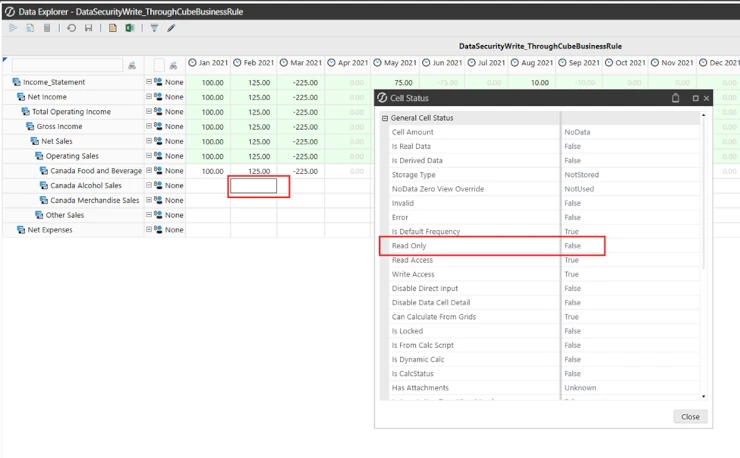
Now when the cube view is run the cell data meets the criteria in the business rule is now a read only data cell.
OneStream Data Input Performance Tips
Keep the rule concise because OneStream evaluates it for every retrieved cell. Test the most selective conditions first, avoid unnecessary lookups, and validate the result with realistic Cube View volumes before deployment.
These practices protect responsiveness while preserving granular control over writable and read-only cells.
As a final reminder, always keep in mind that this rule will run for every data cell that is retrieved so performance of your code is essential. However, it gives you the ability to really fine tune data access down to individual data cells!
Related OneStream Cube View Resources
For more OneStream data input and Cube View guidance, explore linked Cube Views, right-click dashboard navigation, linking Cube Views on dashboards, streamlining data with OneStream dashboards, and splitting time across Cube View rows and columns. Consult the official OneStream documentation for current platform reference material.