How a OneStream Dashboard Pop-Up Dialog Box Works
A OneStream dashboard pop-up dialog box adds a clear confirmation step before a dashboard button runs a sensitive business rule or process.
There are situations where you have a button on a dashboard that will run a process such as a Business Rule. You may have the request to put in a “Are you Sure?” type of functionality, giving the user the chance to re-evaluate their choice, yes, or no? If yes, the business rule will run, if no, the business rule will not run, and you can escape back to the main dashboard. This is useful to help eliminate the unintended action of users mistakenly clicking on a button that runs a business rule that you don’t want to run mistakenly. Everyone occasionally will click on something by mistake. This will help to mitigate the effects of that mistake. This is possible using Dialog Boxes.
Step 1
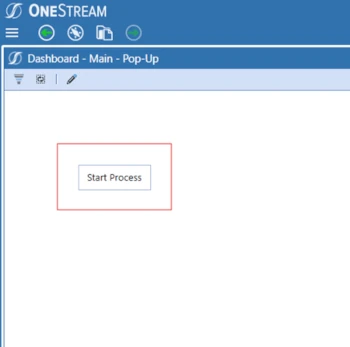
Create your dashboard with a Button on it. This is the button that the user would click on to start the process such as run a business rule.
Step 2
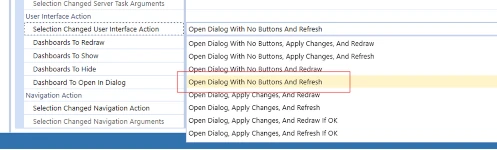
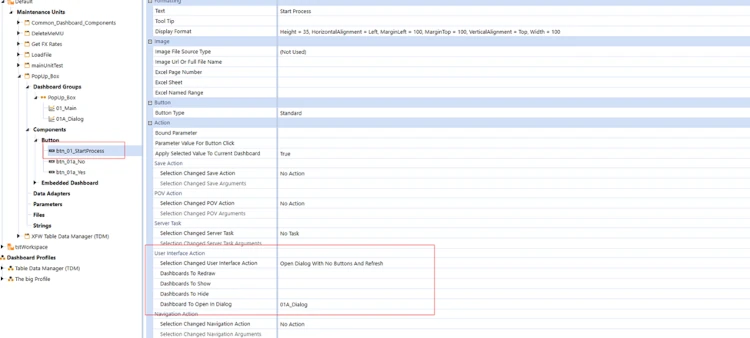
Set the User Interface Action/Selection Changed User Interface Action to the action you want to have happen. In this example I have set it to “Open Dialog With No Buttons and Refresh” and I have selected the dashboard to refresh after the user has chosen yes or no.
Step 3
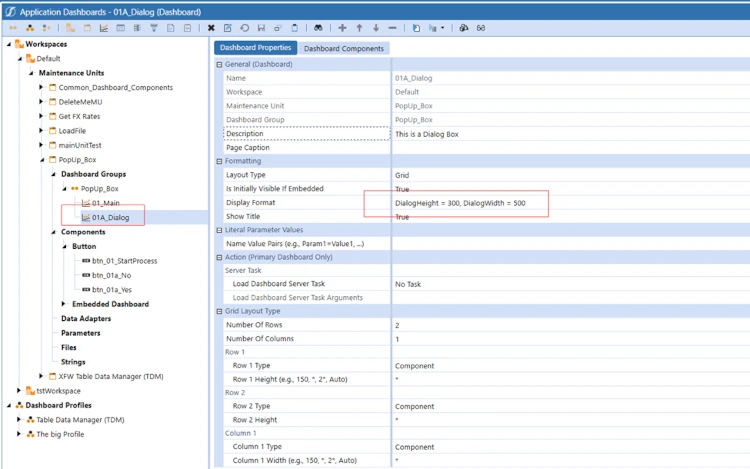
Create another Dashboard that will be your Dialog box. Please note that I set the Dialog box height and width in the Display Format.
Step 4
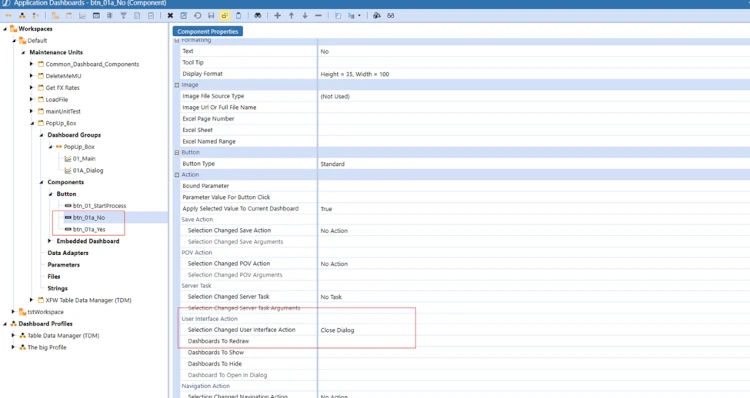
Create 2 buttons that will be your Yes/No buttons on the Dialog Box. Attach the action that you want to happen when the user clicks on these buttons. For the No button I have set the User Interface Action/Selection Changed User Interface Action to “Close Dialog”.
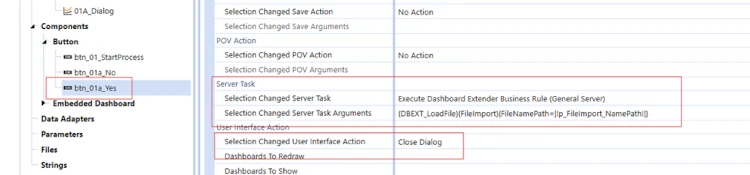
For the Yes Button I have set it to Close Dialog and I have set the button to fire a Business Rule.
Step 5
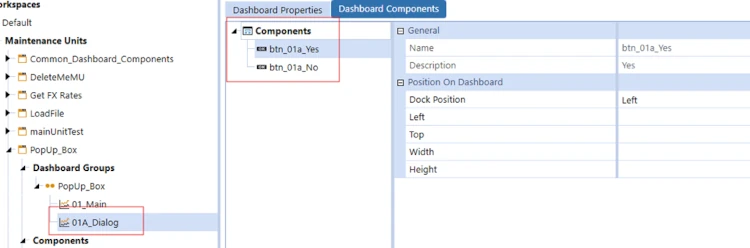
Add the 2 buttons to the Dashboard that will be the Dialog Box
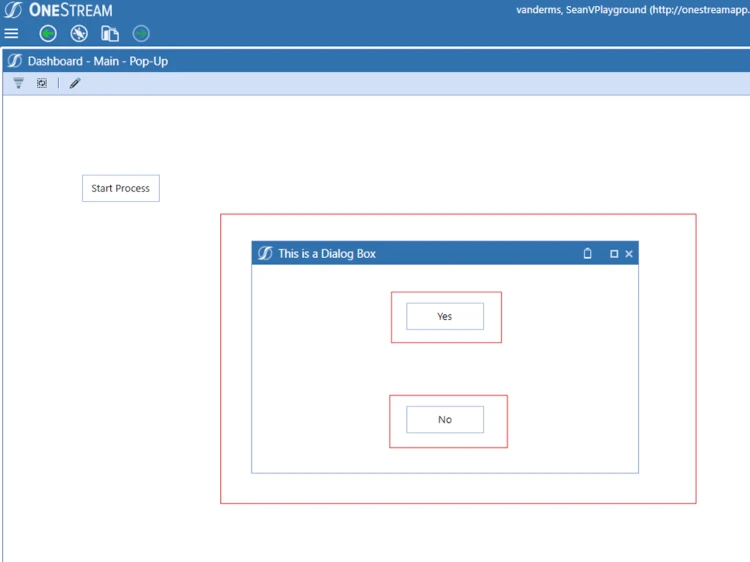
Now open the Main Dashboard! When a user clicks on the “Start Process Button” the Dialog Box will appear giving the user the option to select Yes or No which will either run the Business Rule or not. 5 Easy steps to a dialog box!

OneStream Dashboard Pop-Up Dialog Box Checklist
Start with a dedicated confirmation dashboard sized for concise instructions and two obvious choices. Configure the original button to open the dialog, then connect Yes to the intended action and No to Close Dialog without running the process.
Test the OneStream dashboard pop-up dialog box with representative users and security roles. Confirm that keyboard navigation, button labels, refresh behavior, error handling, and repeated clicks produce predictable results.
Use the OneStream dashboard pop-up dialog box for actions that are difficult to reverse, such as launching calculations, copying data, clearing input, or running business rules. Keep the message specific so users understand exactly what will happen.
Before production, verify the confirmation experience on the supported client and document the dashboard, component, action, and business rule dependencies for future maintenance.
Use a short, direct prompt that names the process and its impact. Record the expected success message, cancellation behavior, and recovery path so support teams can diagnose user reports without guessing.
Store the tested configuration with release notes for repeatable deployment.
Related OneStream Dashboard Resources
Expand your OneStream dashboard pop-up dialog box design with our guides to what OneStream is, OneStream implementation, OneStream training, dashboard button security, and displaying XF tables. Review the official OneStream component action documentation.