
Using Multi Select in a Grid View to Drive an Action
OneStream Blog
Step-by-Step Guide to Multi-Select Grid View Actions

The Use Case:
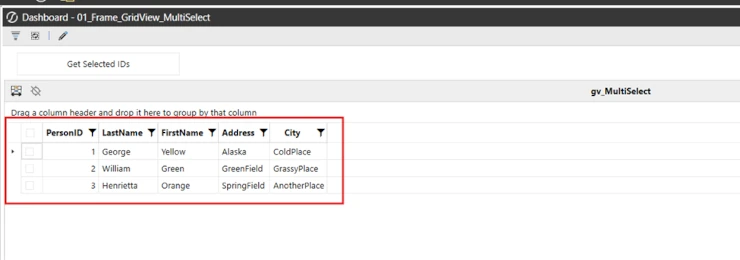
You want to have your users be able to select multiple items from a Grid View on a dashboard and have those multiple selections drive an action. In other words, the ability for the users to select multiple items from a Grid View and have those selections passed to a Business Rule.
The Solution:
1. Create a Grid View and set the “Allow Multiselect” property to “True”.

2. Set the “Column Name for Bound Parameter” to the column name that will be used to pass the selections to your business rule. In my example I want to pass the values of the selected PersonID column to a business rule.

3. Create an input parameter. This parameter will be bound to the grid view and will contain the selected values from the grid view.

4. Set the Bound Parameter property of your Grid View to this parameter.

5. Create a button. This button will execute a Dashboard Extender Business rule and will get the selected values from the grid view.
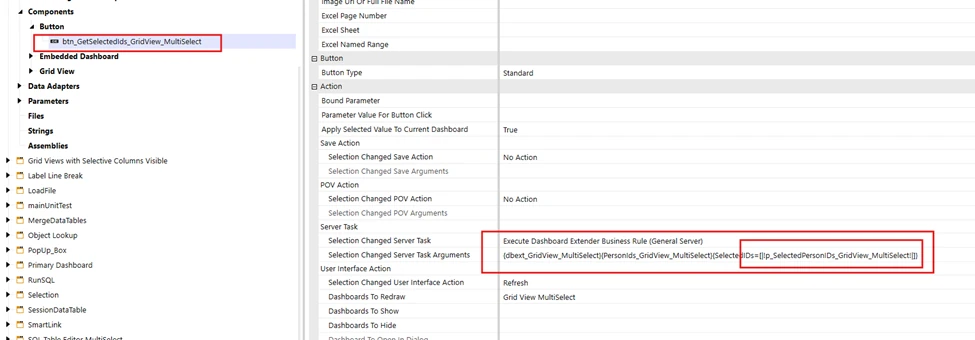
6. Notice in the name value pairs that are being passed to the dashboard extender that I have enclosed the parameter in square brackets. The square brackets are important, otherwise the selected members that are passed as a comma delimited string will not be interpreted correctly.

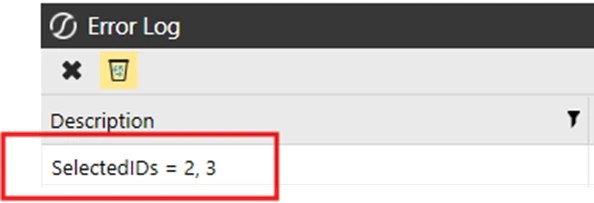
7. In my Dashboard extender I create a string that will hold the passed in selections as a name value pair. I don’t do anything else in the business rule other than write the selected values to the error log, for demonstration purposes.

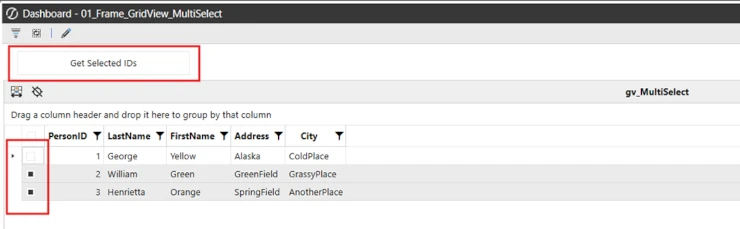
8. Now from my dashboard that contains the button and the grid view. Then select a couple of rows and click on my button.
9. Now the selected PersonID values are written to the error log.
Keep in mind that the business rule in this example is very basic for demonstration purposes. The sky is the limit as to what you can do with those values now that you have them in your business rule. In addition this will also work for a SQL Table Editor.
Contact MindStream Analytics

Want to learn more about OneStream Software? Please complete the form below and we'll get back to you shortly.
Featured Webinar

Join us for a compelling webinar as we delve into the revolutionary capabilities of OneStream Software for corporate performance management (CPM).
OneStream: The Power of One Platform for Intelligence Finance
Partner SpotLight

OneStream CPM
OneStream aligns to your business needs and changes more quickly and easily than any other product by offering one platform and one model for all financial CPM solutions. OneStream employs Guided Workflows, validations and flexible mapping to deliver data quality confidence for all collections and analysis while reducing risk throughout the entire auditable financial process.