
Blog - Navigate from a Cube View to Another Dashboard via Right Click Menu
Client Requirement for Dashboard Navigation

This example is based on another Client driven request. The Client wanted a dashboard containing a Cube View, with the ability to right click on a cell of data in that Cube View, in some columns of that Cube View but not all columns, with a right click menu option that would navigate the user to another Dashboard. In this example I will show how to enable this functionality.
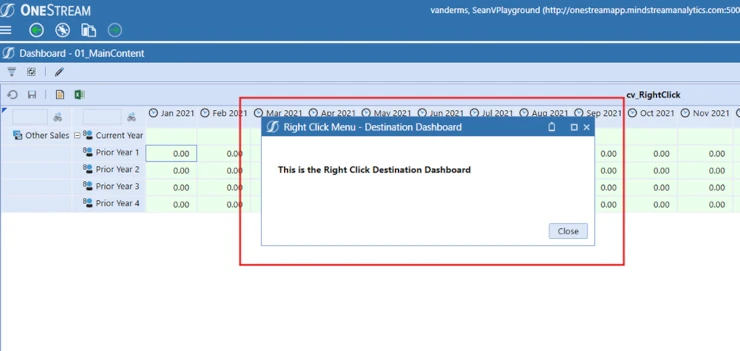
The screen shot below shows the desired result, a menu option that pops up when right clicking on a data cell in a Cube View. The menu option will navigate the user to another Dashboard.

Setting Up the Source Cube View and Dashboard
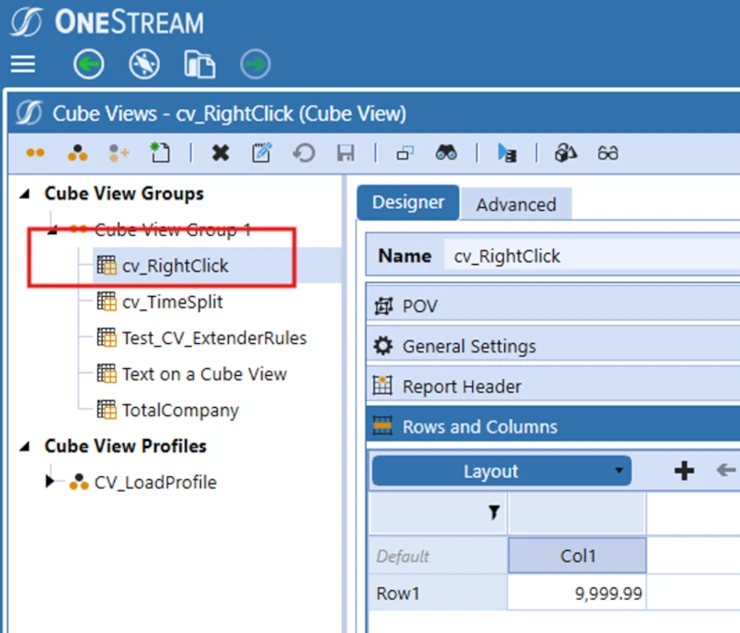
1. Create a Cube View or utilize an existing one.
Creating the Destination Dashboard Component
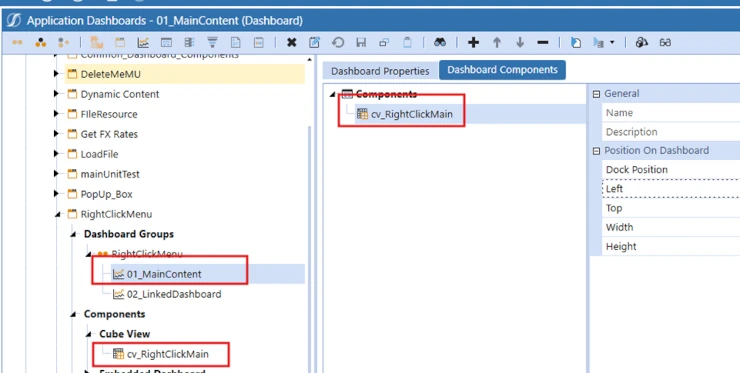
2. For the purposes of this example, I created a simple Maintenance group with the Main Dashboard that contains the Grid View that I added to a Cube View Dashboard Component.
Configuring Right Click Navigation in Cube View
3. I also created the destination Dashboard Component, 02_LinkedDashboard that I placed a label on, solely for demonstration purposes.

Customizing Navigation for Specific Columns
4. Note that the description on the 02_LinkedDashboard component is what drives the name on the right click menu from the source Cube View/Dashboard.

5. Ensure that you have your source Dashboard with the Cube View component added to it, plus you have your destination dashboard created.
Understanding the Right Click Menu Display
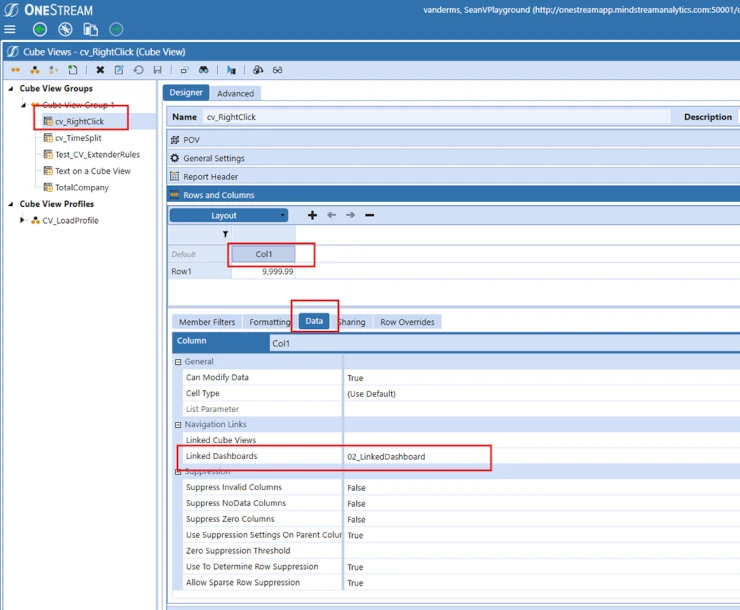
6. The next step is to enable the right click navigation from the source Cube View to the destination dashboard. To do this open your source cube view, navigate to the Rows and Columns Section of the Cube View. Select the Column you want to enable the right click menu on. (Yes, you can limit this to specific columns or rows). Then select the Data tab for that column. Under the Navigation Links, Linked Dashboards put in the name of the Dashboard you want to have added to the right click menu. Yes, you could also enable navigation to just a cube view if you need, or both.
Testing the Navigation Functionality
Now you have enabled the right click navigation from the data column on the Cube View on your Dashboard.

Note the name on the menu option, it is based on the Description of the Dashboard component that you have added navigation to. Clicking on this Menu Option will pop up the dashboard that was added to the navigation link on the source cube view.
Contact MindStream Analytics

Want to learn more about OneStream Cube Views? Please complete the form below and we'll get back to you shortly.
Featured Webinar

Join us for a compelling webinar as we delve into the revolutionary capabilities of OneStream Software for corporate performance management (CPM).
OneStream: The Power of One Platform for Intelligence Finance
Partner SpotLight
OneStream CPM
OneStream aligns to your business needs and changes more quickly and easily than any other product by offering one platform and one model for all financial CPM solutions. OneStream employs Guided Workflows, validations and flexible mapping to deliver data quality confidence for all collections and analysis while reducing risk throughout the entire auditable financial process.