How to Diagnose a 500 Internal Server Error in OneStream

A 500 Internal Server Error in OneStream indicates that the web request reached the server but failed during processing. The visible message rarely identifies the root cause, so administrators should preserve the timestamp and user context, then inspect OneStream, IIS, Windows, network, and infrastructure evidence in a controlled order.
While upgrading OneStream XF to version 6.0.0, I encountered an error: “HTTP Err0r 500.19 – Internal Server Error.” Here’s what happened and how I was able to resolve it quickly.
After completing all the required upgrade steps in the release notes and restarting IIS – I proceeded to open the application through Internet Explorer and received this error message:
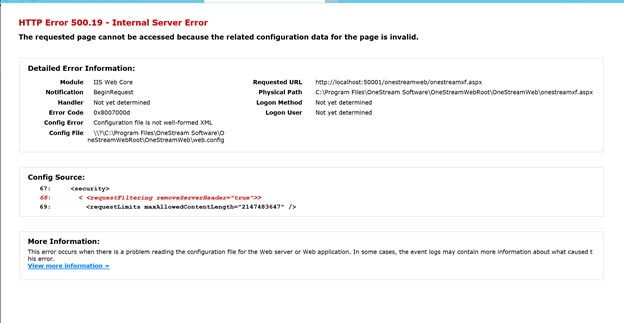
I followed the path to the web config file in the OneStreamWebRoot file path:
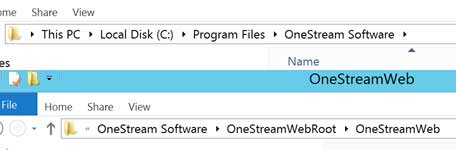
I then open the “Web.config” file in Notepad ++ and navigated to lines 67-69 as error had reported. I then commented out these lines in the code, saved it, and closed the file:

I relaunched Internet Explorer but received this error in my journey through the upgrade:
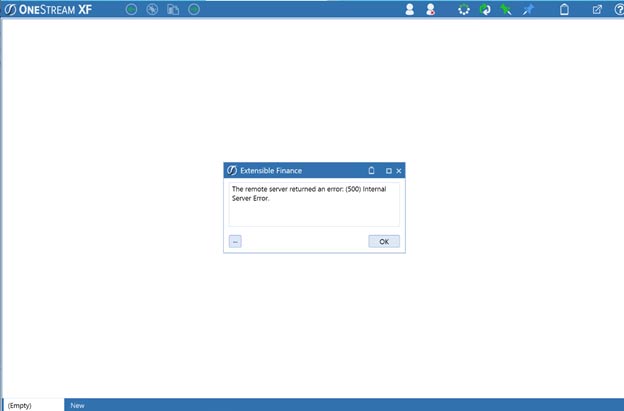
“The remote server returned an error: (500) Internal Server Error.” So, I clicked the “…” box to show me more information on this:
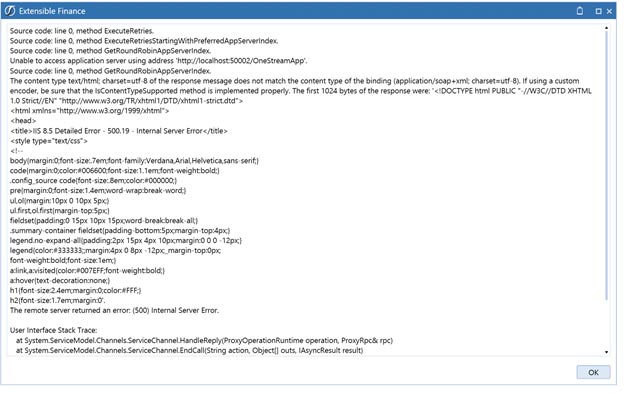
Right then� I had an epiphany. Maybe the bad line of code existed in the application root web.config file as well. I navigated to that file:
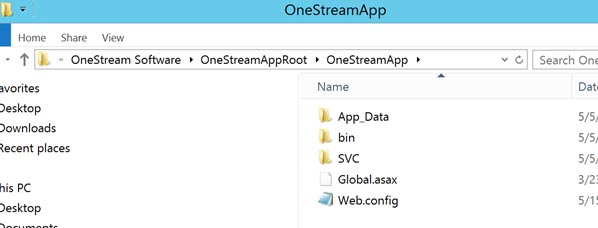
Again, I opened the file in notepad ++ and, low and behold, on lines 52-59 I could see the same coding.
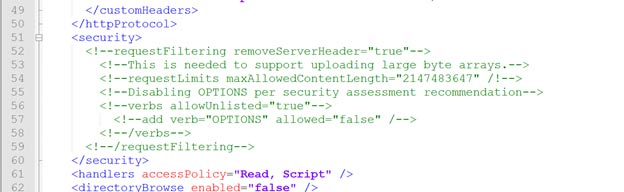
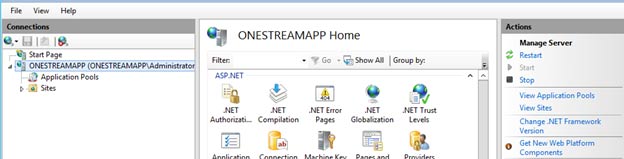
I proceeded to comment out those lines in the code, saved it, and closed the file. I then gave IIS a good ole fashioned start:
Then I proceeded to launch Internet Explorer and, sure enough, the OneStream application loaded perfectly!
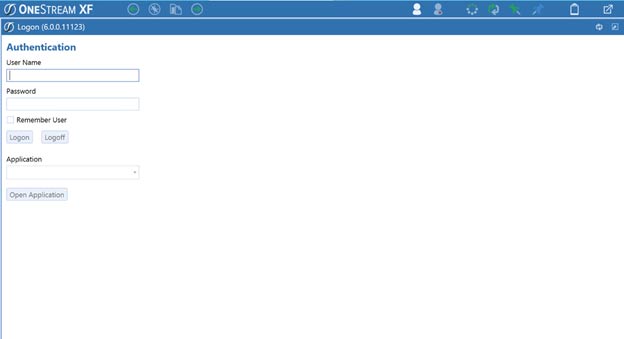
Now, time to get working within my OneStream application using this exciting new 6.0.0 version!
500 Internal Server Error Diagnostic Workflow
Begin with the OneStream Error Log and Windows Event Viewer. Match entries to the exact time, user, application, workflow, and action that produced the failure. Capture the full exception and inner exception before restarting services, because a reset can remove valuable diagnostic context.
Determine whether the issue affects one user, one application, one web server, or the entire environment. Test another browser or workstation, confirm the OneStream URL, and compare behavior across load-balanced nodes. A limited scope often points to session, security, application, or node-specific configuration rather than a platform-wide outage.
Review IIS application-pool status, recent recycles, memory pressure, identity permissions, certificates, bindings, and connectivity between web, application, database, and file-share tiers. Confirm that OneStream services are running and that configuration files are available. Avoid changing multiple settings simultaneously; make one evidence-based correction and retest.
If the 500 Internal Server Error follows a deployment or configuration change, compare the current state with the last known working version. Check business rules, assemblies, dashboards, integrations, authentication, and environment variables that were modified. Roll back only the confirmed change when that is safer than applying another untested adjustment.
After service is restored, document the cause, corrective action, affected users, duration, and prevention steps. Monitor logs and response times through the next business cycle. Escalate with timestamps, screenshots, correlation details, and complete logs when OneStream Support or infrastructure teams are required.
Before closing the incident, repeat the original user action and one representative workflow. This confirms recovery from the user perspective and creates a reliable baseline for future monitoring.
500 Internal Server Error and OneStream Resources
For more guidance on the 500 Internal Server Error, explore what OneStream is, OneStream XF, OneStream application support, OneStream hosting, managed services for OneStream. Also review the official OneStream troubleshooting documentation.