OneStream linked Grid Views gives finance teams a clearer, governed process for this common OneStream task.
How OneStream linked Grid Views Works

I wanted to give my users the ability to query 2 custom relational XFC tables set up in the Application Database, without having to create any SQL code and all through a dashboard. They needed to be able to select a field from the first table and then dynamically query the second table based on the selection from the first table. No Problem!
To do this I made use of “linked” Grid Views populated with parameter driven SQL Query Data Adapters.
Example of the dashboard with 2 Grid View components on it.
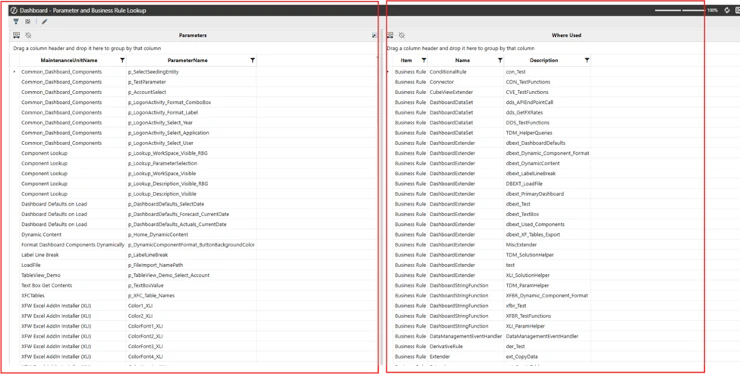
Example of the same dashboard, with a field selected on the left Grid View, showing the results of that selection on the right Grid View.

How to set this up
1. Create 2 Grid View Components.

2. Create an Input Value Parameter (this will be used to pass the selection from the first grid view to the second grid view).
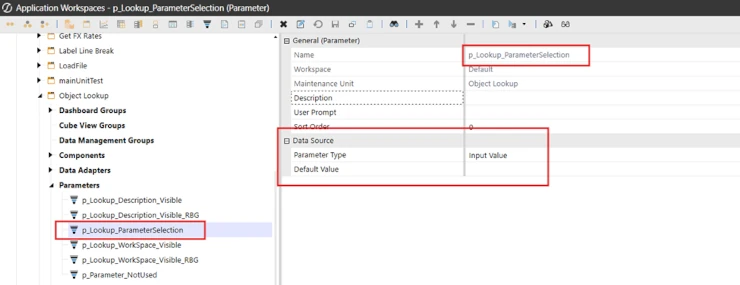
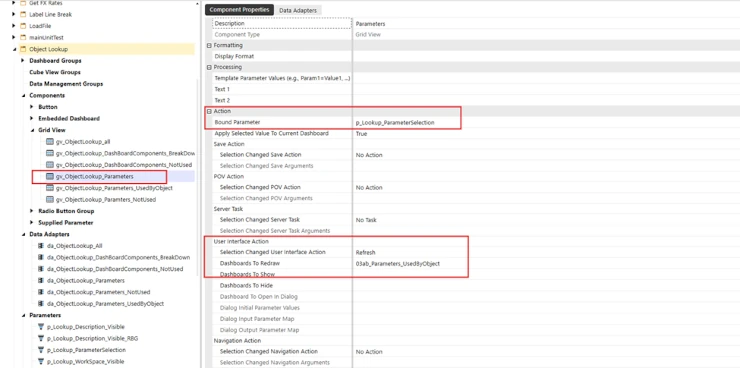
3. Configure the first Grid View component’s, think of it as the selection grid view or the source grid view, Bound Parameter property with the parameter just created.
Set the User Interface Action to refresh the Dashboard component containing the second Grid View Component. It needs to be refreshed after its data is updated.
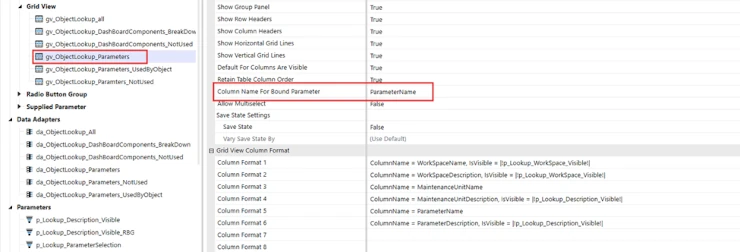
4. Set the Column Name for Bound Parameter Property to the column name containing the field value that you want to pass to the second grid view. When a user selects this field the input parameter will be populated with its value and the second grid view will be refreshed. This parameter value will be used in the SQL query in the data adapter used in the second grid view.
5. Create two SQL Query Data Adapters.
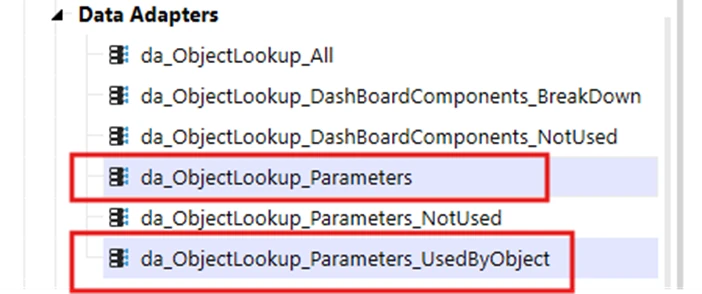
The SQL in the first one queries the first table and brings back all of its results and they are shown in the first Grid View.
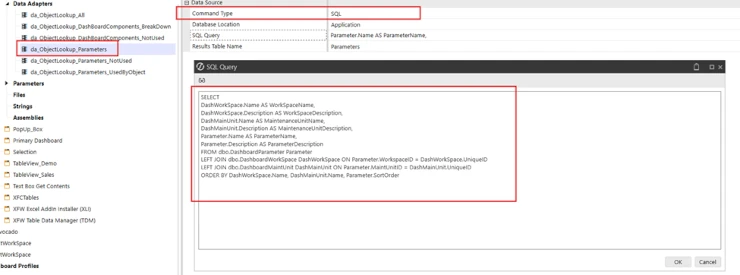
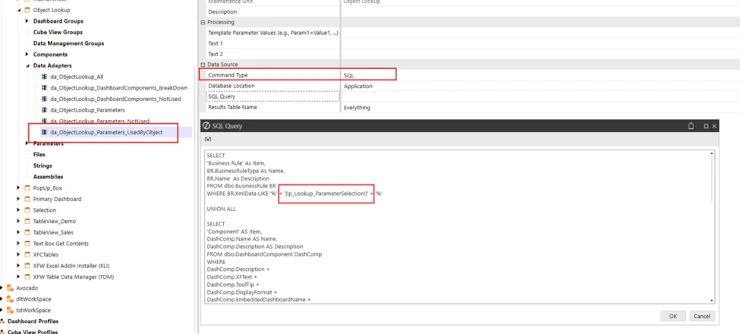
6. “Parameterize” the SQL in the second adapter that returns filtered results. Note in the screen shot below where the parameter name is in the SQL Query. This parameter is populated whenever a user selects a field from the first grid view which refreshes the second grid view which runs this query.
7. Add these Grid Views to your Dashboards.
Key Points to Remember
- 2 Grid Views using SQL Query Data Adapters.
- The “Source” Grid View needs a Bound Parameter.
- The “Source” Grid View needs its “Column Name for Bound Parameter” property set to the column that you want to pass the field value to the second grid view. It’s easy to miss this step as this property is far down in the property list and easily overseen.
- “Parameterize” the SQL in the data adapter for the second grid view with the parameter that the first grid view is bound to.
- Set the “Selection Changed User Interface Action” in the source grid view to refresh the second grid view.
Contact
MindStream Analytics
Want to learn more about OneStream? Please complete the form below and we’ll get back to you shortly.
Implementation and Validation Checklist
OneStream linked Grid Views requires documented configuration, representative test data, clear ownership, and a repeatable review before production use.
OneStream linked Grid Views requires documented testing, representative test data, clear ownership, and a repeatable review before production use.
OneStream linked Grid Views requires documented security, representative test data, clear ownership, and a repeatable review before production use.
OneStream linked Grid Views requires documented maintenance, representative test data, clear ownership, and a repeatable review before production use.
Related OneStream Resources
Explore what OneStream is, OneStream implementation, OneStream training, Data Management progress, and CSV exports. See the official OneStream documentation.