How to Move a OneStream Export File to a Public Folder

A OneStream export file created by Data Management normally lands in a restricted File Share folder. This guide moves it to a public application location.

If you are using a Data Management Export Data Step to export cube data to a file, the Export Data step, by default exports the file to the File Share Data Management Export Folder. The issue with this is that non-administrator users don’t have access to this folder. So, if you want non-administrators to have access to the file you will need to move it to a location that they do have access to. In this example I will be moving the data export file to the Application Database Public folder.
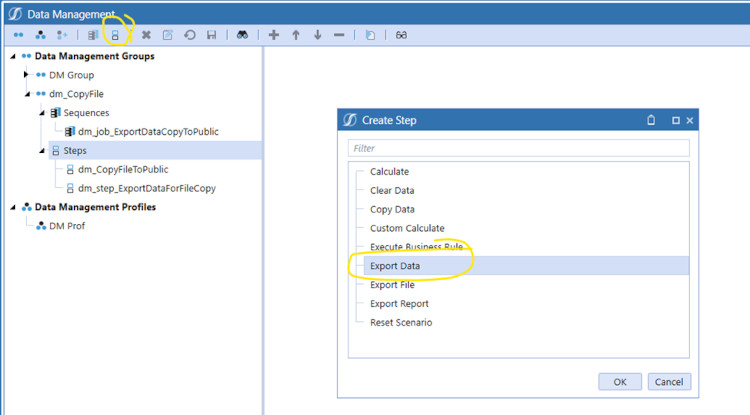
OneStream export file Data Management step

1. Start with creating an Export Data, Data Management step.

2. Set the options for the Data Management Step.

In this example I set most of the Output Files options to False as I wanted the file name to just be “TotalCompany_CubeData.CSV”. Set your Data Units options according to what cube data you would like to export. Note the file share file name as you will need it for the Extensibility Business Rule during a further step. This step will include the Cube Name in the file name because I left that parameter as True.
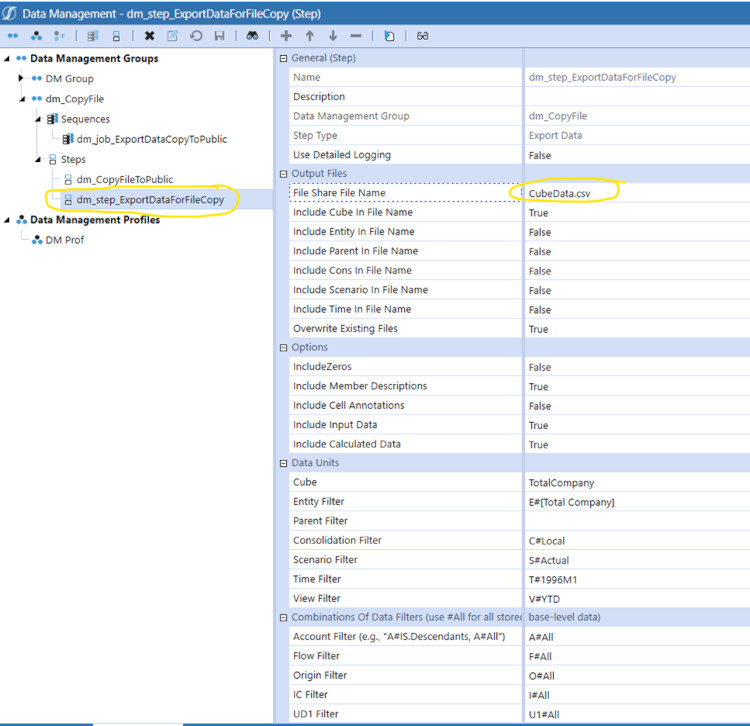
OneStream Data Management Create Data Export File

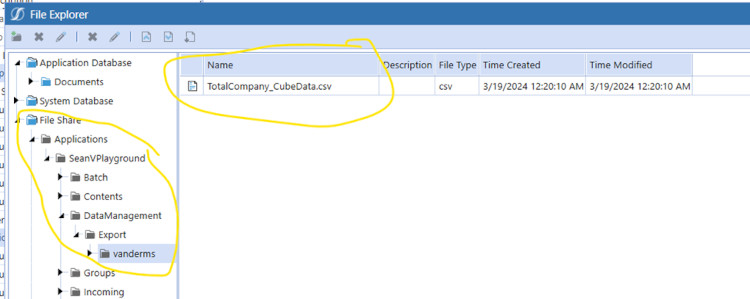
3. If you were to run the data management step at this point it would create the file in the File Share Data Management Export Folder under your User Name.

OneStream File Created Under Administrator Access Only

The problem with this is that non-administrators can’t access this folder. So, you need to move it to a folder that a user who is not an administrator have access to. In this example I am going to move it to the Application Database/Documents/Public folder.
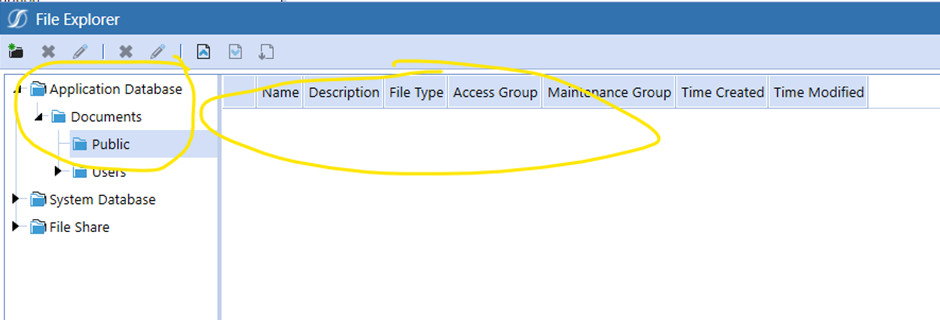
OneStream Data Management Folder Administrator Access Only

Moving this file can be done through several ways. In this example I am going to use an Execute Business Rule Data Management Step that will run an Extensibility Rule.
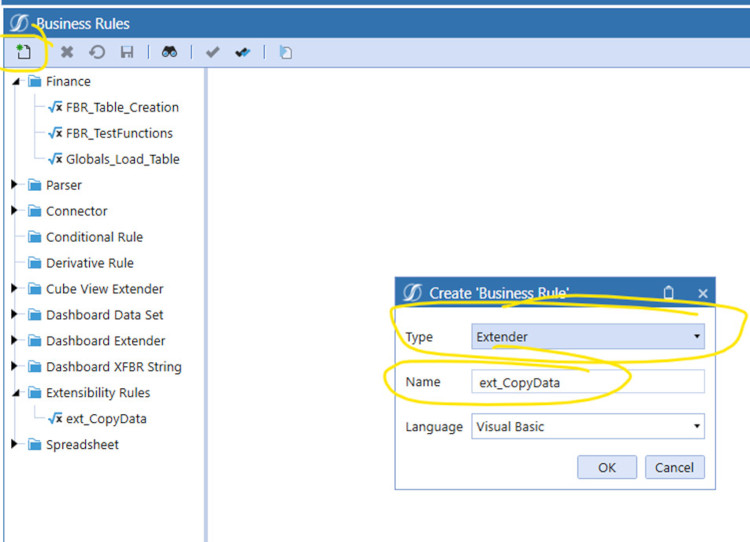
4. Create an Extensibility Rule.

OneStream Business Rules

5. Use the following code in your Extensibility rule. For example, purposes I have hard coded the file name.

The two key functions are:

a. BRApi.FileSystem.GetFile – Where you defined the location and name of the file to be moved.

b. BRApi.FileSystem.InsertOrUpdateFile – where you define where the file is to be moved to.
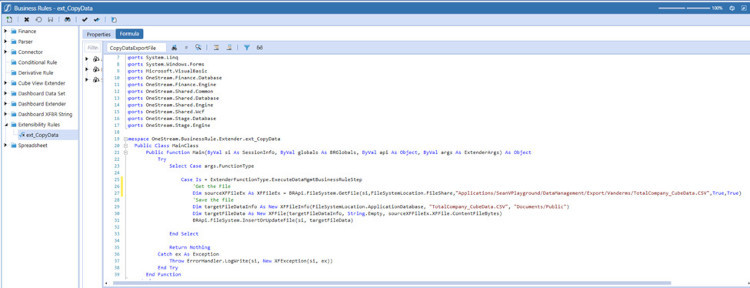
OneStream Business Rules Copy Formula

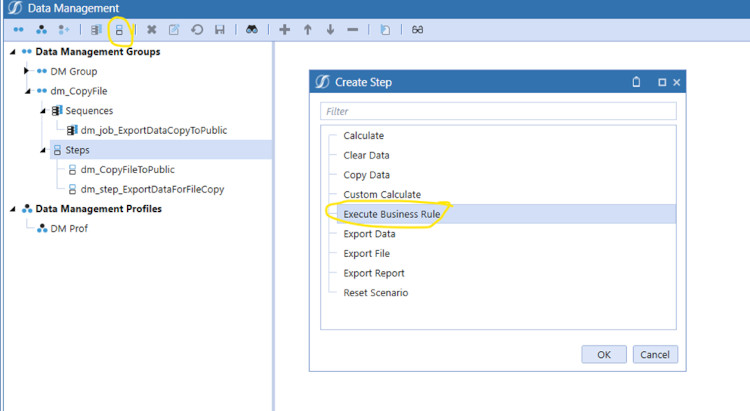
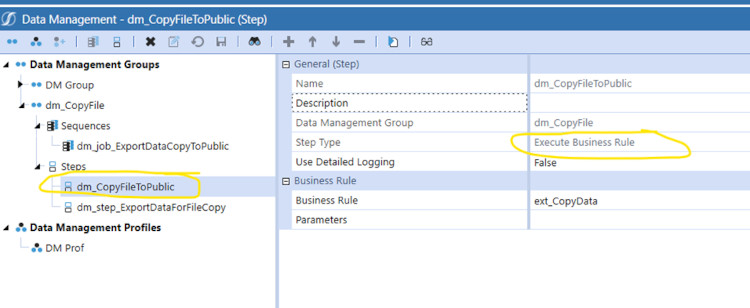
6. Then set up an Execute Business Rule Data Management Step.

OneStream Execute Business Rules

OneStream Copy File to Public

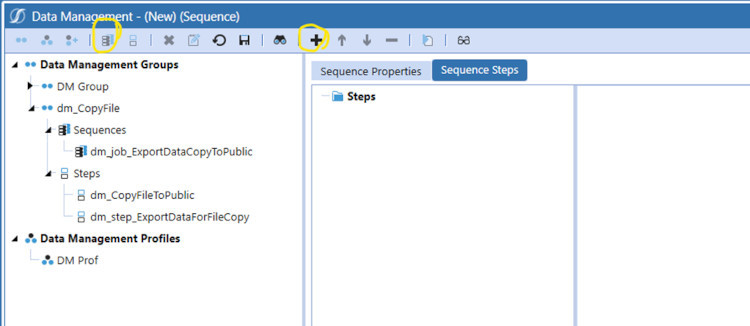
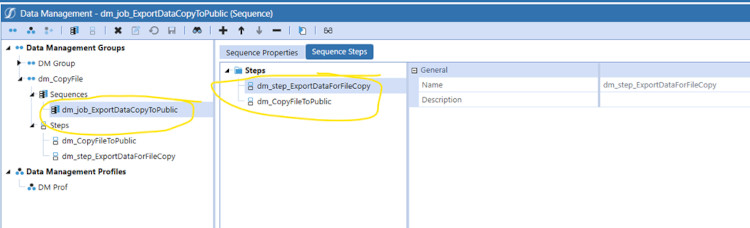
7. The 2 steps, export data and execute business rule can be chained together into a Data Management Sequence. Create the new sequence and add the two Data Management steps created earlier.

OneStream Data Management New Sequence

OneStream Data Management Run New Sequence

8. Then run the Data Management Sequence. The data will be exported as a .CSV file then moved to the Application Database/Documents/Public folder.

OneStream Data Management Extract to Public Folder

OneStream Export File Deployment Checklist

Before deploying the sequence, confirm the OneStream export file name, cube, data units, output options, and destination path. Use a predictable naming convention so the Extensibility Rule can locate the correct file without exposing unrelated exports.

Test the OneStream export file process with an authorized non-administrator. Verify that the export step creates the CSV, the business rule copies it, the public folder permissions are correct, and repeat runs safely update the intended file.

For a dependable export workflow, log failures, avoid hard-coded environment-specific paths when possible, and document file retention requirements. Validate the complete Data Management sequence after platform upgrades or security changes.