
OneStream Blog - OneStream Excel Metadata Builder
Use Case: When Manual Entry Isn’t an Option

The requirement is to build out a dimension or dimensions within a OneStream application and you don’t want to manually add the members one at a time through the OneStream Cube Dimensions interface.

Sure, it could be done manually, but what if you have thousands of members to add? OneStream has the OneStream Excel Metadata tool available on the OneStream Marketplace.
Navigate to OneStream Solution Exchange and download the Excel Metadata Builder.
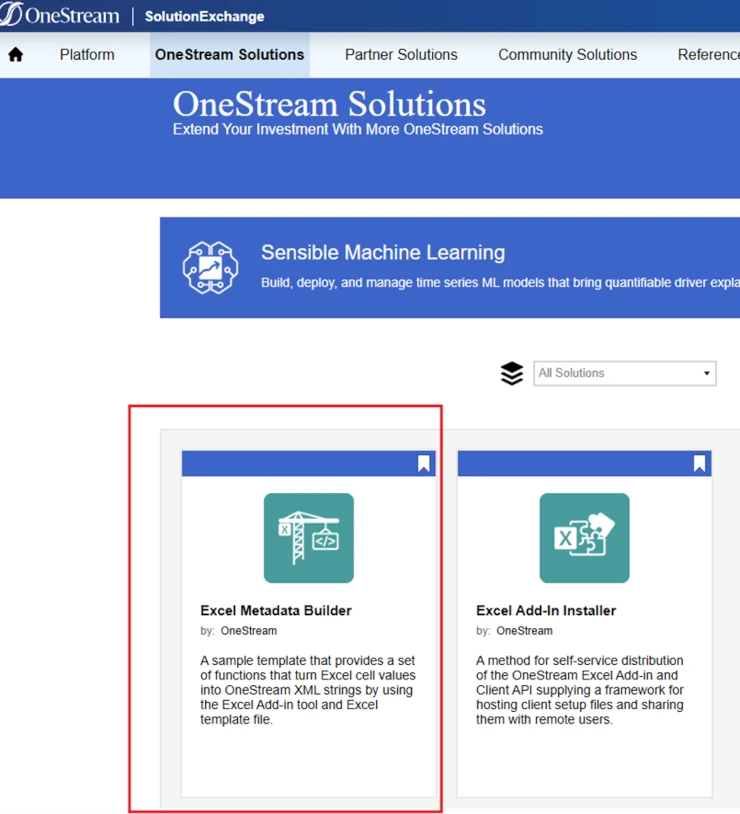

Once it’s downloaded you will need to set it up and configure it on your local computer.
Key Steps for Installation (in the download there is a pdf of instructions)
1. Create a C:\OneStream folder on your local computer
2. Unzip the contents of the download to this folder
3. Copy OneStreamMetadataBuilder_v52.xlam into your C:\OneStream folder
4. Register the Add-In as an Excel Add-In
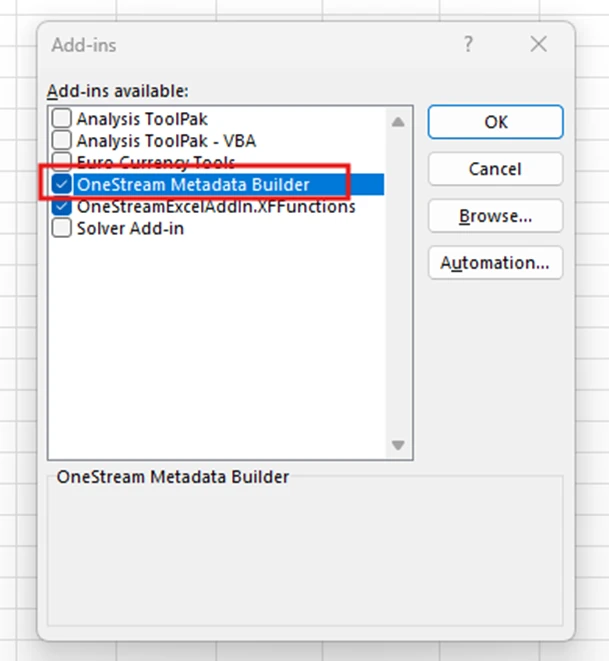
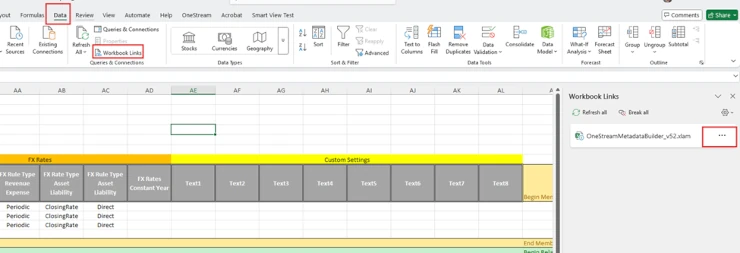
5. Open the Dimensions Template in Excel and update the Formula References.

6. Update the formula references by pointing the source to the OneStreamMetadataBuilder_v52.xlam in your C:\OneStream local folder.
Now the Excel Metadata builder tool is ready to use. You will need to update all the sections on the appropriate tab for the dimension you are building, then copy the XML section to a text file and save it as .xml. At that point it will be ready to load into OneStream.
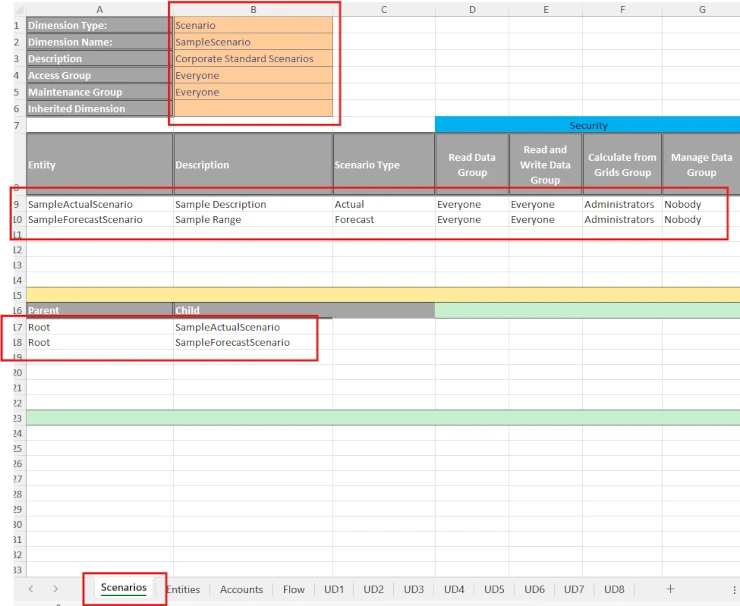
There are 4 key areas on the tab for the dimension you want to update.

1. The Dimension Information section.
It comes pre populated with sample information. Update Dimension Type, Dimension Name, Description, etc to reflect the properties of the dimension you want to update.
2. The Dimension Member Section.
Enter any members for the dimension with their properties.

3. The Member Relationship Section.
Define the Parent Child member relationship of any new members being added.

4. The XML Section.
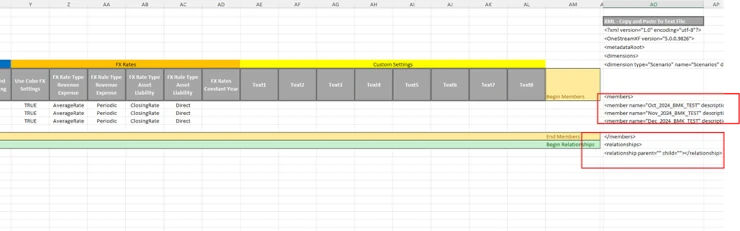
As you add members and member relationships the xml in the far right column will be automatically be built out by the member formulas that are already there. This is the section that you will copy and paste into a txt file (renamed as a .xml file) for upload to OneStream.

Items to Remember
OneStream does not “pre-parse” the upload XML to check for any errors before loading. It loads the XML line by line, processing it as it goes. If it runs into an error, it stops there. It’s possible to create new members and if there is a problem before the member relationship section or if you didn’t create the member relationships, all the members that it processed up to that point now exist as Orphans.
Remember to update the Defaults values in the stock template for the Dimension Type, Name, Description, etc.
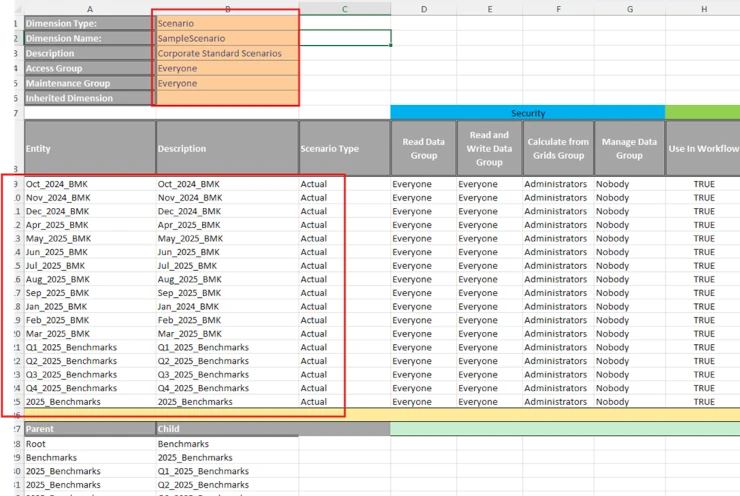
If you don’t, your members in the members and relationships section will be created in the wrong dimension. Or worse, you defined your members and their relationships but forgot to update the default Dimension Name. Now you have members sitting in the wrong dimension.
Check to see that the formulas that create the XML are copied down for all members that you add to the member section.

Don’t copy the xml formulas into rows with no definitions, this will cause an error on load.


Remember to define your relationship definitions for new members, otherwise you will get an error on load, however the members will have been created as Orphans.
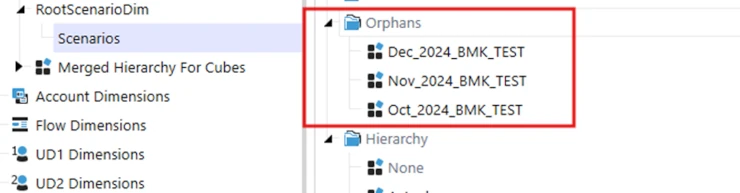
Make sure that all your properties are set as you want them, otherwise defaults may be applied.

I suggest testing the load of a small number of members first checking that you have the format correct, haven’t mistyped something or missed a formula or some other error. That way you won’t inadvertently create hundreds or thousands of orphan members or incorrect dimensions with the members in the wrong dimensions or incorrect settings.
Another source of Information
OneStream has an online navigator course available that gives more information on the Excel Metadata Builder. I found this course useful when I first started using the Excel Metadata Builder.
https://onestream.thoughtindustries.com/courses/onestream-marketplace-modifying-metadata-using-the-metadata-builder
Contact MindStream Analytics

To learn more about OneStream and how MindStream Analytics can help you improve your planning, reporting, and analytics, please fill out the form below.
Featured Webinar

Unlock the future of financial management with our informative webinar and demo of SheetsTM for OneStream, a pioneering solution by MindStream Software that brings OneStream’s powerful financial features directly into Google SheetsTM.
Transform your Financial Management in Google Sheets with Sheets for OneStream
Partner SpotLight

OneStream CPM
OneStream aligns to your business needs and changes more quickly and easily than any other product by offering one platform and one model for all financial CPM solutions. OneStream employs Guided Workflows, validations and flexible mapping to deliver data quality confidence for all collections and analysis while reducing risk throughout the entire auditable financial process.