Easily deliver reporting packages to your Users Part 2

As noted in the previous blog, OneStream books are an excellent way to deliver reporting packages to your users.

Also, in our previous blog, we looked at the basics of creating a book, including organizing books into folders, and created a book that ran several reports for one entity. We will now review how to create a book with one report repeating for several entities.

In our example today, our regional controllers would like to be able to pull the Income Statement Trend report (which is the cube view name Income_Statement Trend_Select) for their region parent and include all the children entities comprising their region. This is done by ensuring the parameter ParamEntity, is used in the cube view and the book we create.

To do this, we will create our book using the cube view Income_Statement Trend_Select). For the Output Name, we will use the parameter ParamEntity to include the entity’s description on the tab. Next, the first Excel Export Item is set up for the top parent entity:

Easily deliver reporting packages to your Users Part 2 image 1

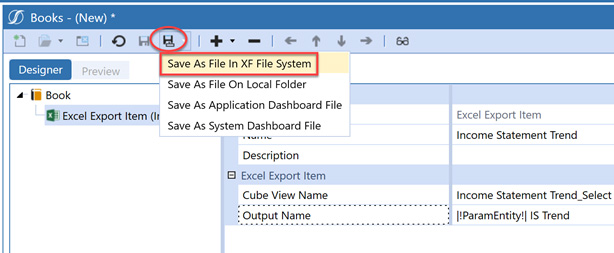
As you know from my previous blog, I like to save the book before continuing to develop it. If you are interrupted or need to walk away, you haven’t lost all your work should the application time out.

Easily deliver reporting packages to your Users Part 2 image 2

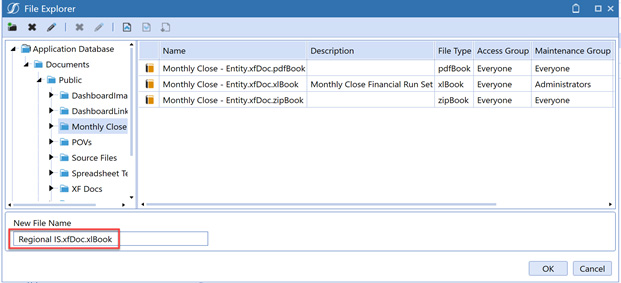
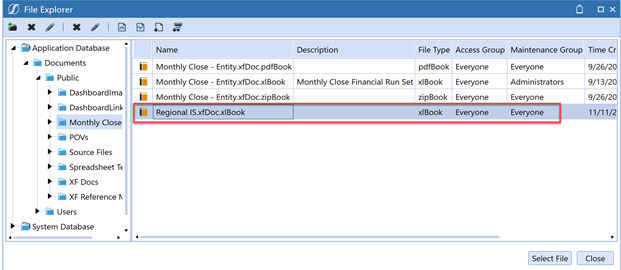
We will save this as an Excel book:

Easily deliver reporting packages to your Users Part 2 image 3

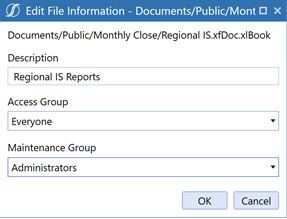
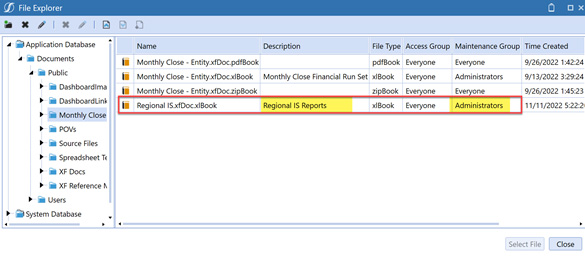
As before, once I have saved the book, I like to update the Description and Access/Maintenance Groups as needed:

Easily deliver reporting packages to your Users Part 2 image 4
Easily deliver reporting packages to your Users Part 2 image 5
Easily deliver reporting packages to your Users Part 2 image 6

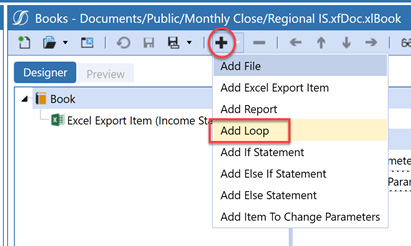
Now that the book is saved, the next step is to create a Loop. This is necessary for the book to Loop through all the children entities under the parent entity we selected.

To add a loop:

Easily deliver reporting packages to your Users Part 2 image 7

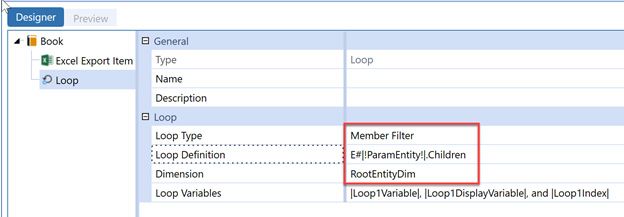
The Loop Type, Loop Definition, and Dimension must all be populated in the Loop. In this example, I am using the parameter ParamEntity and running the cube view for all the children below the parent entity selected:

Easily deliver reporting packages to your Users Part 2 image 8

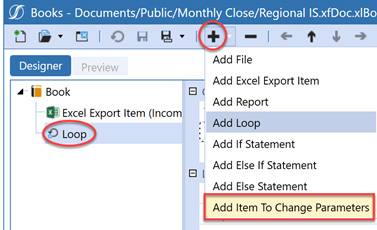
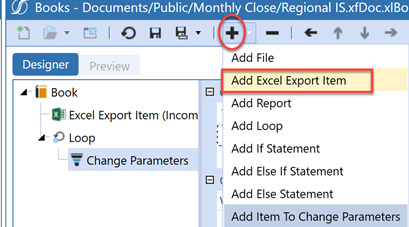
After adding the Loop, you have several options. In this example, we will use Add Item to Change Parameters:

Easily deliver reporting packages to your Users Part 2 image 9

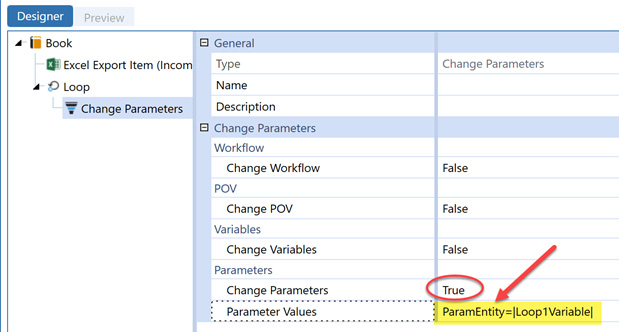
Make sure to update the Parameter Values to use your parameter:

Easily deliver reporting packages to your Users Part 2 image 10

Now that you have created the Loop and defined that you are changing parameters, you must add the type of file you wish to export. In this case, we will again export an Excel file:

Easily deliver reporting packages to your Users Part 2 image 11

We will define this Excel Export Item the same as the initial Excel Export Item we added to the book, but this time it is used for the children entities of the parent:

Easily deliver reporting packages to your Users Part 2 image 12

After adding this last piece and saving the book, it is ready to run:

Easily deliver reporting packages to your Users Part 2 image 13

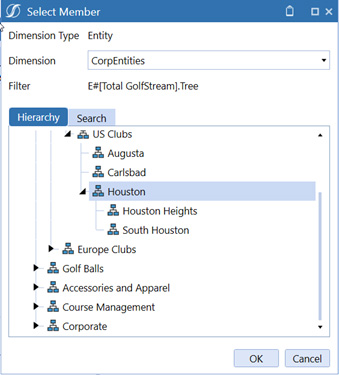
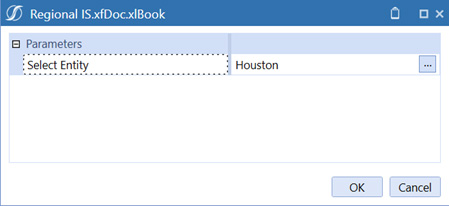
In our example, we will select the parent entity Houston:

Easily deliver reporting packages to your Users Part 2 image 14
Easily deliver reporting packages to your Users Part 2 image 15

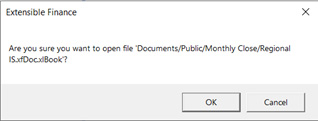
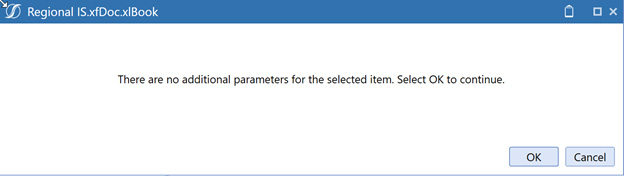
There are no more parameters to select, so we receive the following message:

Easily deliver reporting packages to your Users Part 2 image 16

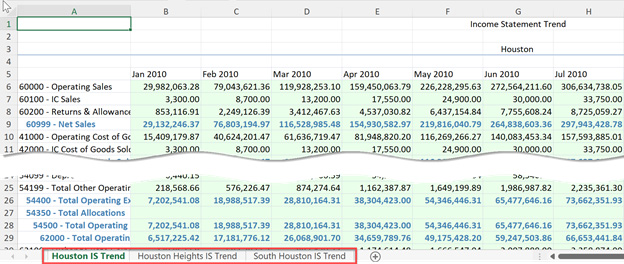
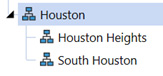
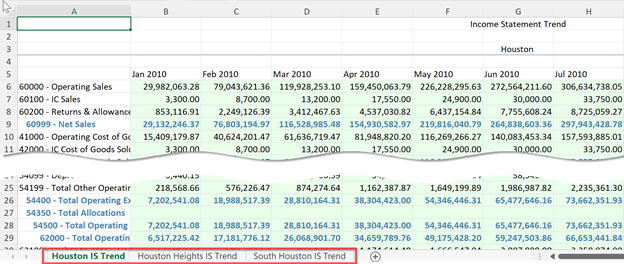
The Excel file will contain the parent entity, Houston, and its two children as three separate tabs in the same file:

Easily deliver reporting packages to your Users Part 2 image 17
Easily deliver reporting packages to your Users Part 2 image 18

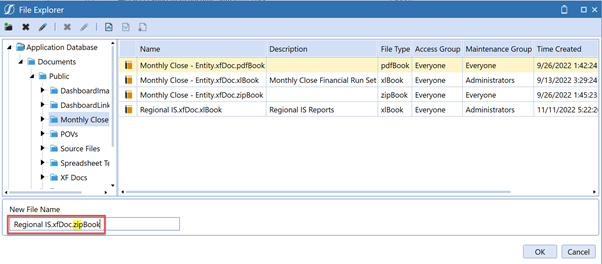
If you wish to run this report but need to have each entity export as a separate file, you can do this by saving the book as a Zip book:

Easily deliver reporting packages to your Users Part 2 image 19

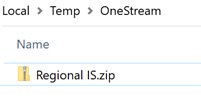
The zip file will automatically open after the execution completes:

Easily deliver reporting packages to your Users Part 2 image 20

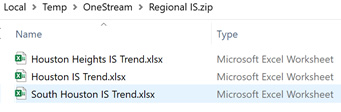
All spreadsheets are contained in a zip file:

Easily deliver reporting packages to your Users Part 2 image 21