OneStream Export Data to CSV: Powerful Guide

OneStream export data to CSV Business Rule guide

How to Use OneStream Export Data to CSV

OneStream export data to CSV by using a Dashboard Extender Business Rule to gather records, encode the output, and save the file in the application database.

OneStream Export Data to CSV Workflow

There are cases when you want to give the user the ability to export data to a CSV file. Yes, many of the components have this ability built into them, however some like the SQL Table Editor may have paged data and the built-in export only exports the page of data you are on. Or perhaps the data you are going to export is not being displayed on the dashboard through a component. In this example a function is going to be run from a button push that will export dimension members to a CSV file. In this case this is more of an export of Metadata vs Data, however the process remains the same. Gather the data, load it to an array of Byte, then save it to the Application Database file folder structure.
To accomplish this I will be using the brapi.filesystem.InsertOrUpdateFile function.
brapi.FileSystem.InsertOrUpdateFile(si,XFfileData)
This function requires a couple of parameters which in turn will require a couple of other functions with several parameters each.
For the Dashboard Extender Business Rule.
Step 1 – Define the file path and name where the file will be exported to. I will be exporting it to the Application Database File folder under the folder for the user. Notice that I remove any spaces from the username as that is how the user folder is named by OneStream.
‘Export File path and Name
Dim fileName As String = “CorpAccounts.csv”
Dim filePath As String = $”Documents/Users/{StringHelper.RemoveSystemCharacters(si.UserName,False,False)}”
Step 2 – Define the dimension to be exported. For demonstration purposes I have hardcoded it in the business rule.
‘Dimension to be Exported
Dim accountDimPk as DimPk = BRApi.Finance.Dim.GetDimPk(si, “CorpAccounts”)
Step 3 – Get all the descendants of the dimension and load them into a list.
‘Get the descendants of the Dimension into a List
Dim listOfParents As list(Of memberinfo) = BRApi.Finance.Members.GetMembersUsingFilter(si, accountDimPk, “A#[Income Statement].descendants.Where(HasChildren = true)”, False)
Step 4 – Loop through the list and add the list members to a string builder object.
‘Loop through the list and append the members to a StringBuilder object
Dim csv As New Text.StringBuilder
For Each parentMember In listOfParents
For Each childMember in BRApi.Finance.Members.GetChildren(si, accountDimPk, parentMember.Member.MemberId)
csv.AppendLine($”””{childMember.name}””,””{childMember.Description}””,””{parentMember.member.name}”””)
Next
Next

Step 5 – Convert the String Builder object to an Array of Byte.
‘Convert String to array of byte
Dim fileBytes As Byte() = system.Text.Encoding.Unicode.GetBytes(csv.toString)

Step 6 – Save the CSV file to the File System.
‘Save csv to file
Dim XFfileDataInfo As New XFFileInfo(FileSystemLocation.ApplicationDatabase,fileName,filePath)
Dim XFfileData As New XFFile(XFfileDataInfo, String.Empty, fileBytes)
brapi.FileSystem.InsertOrUpdateFile(si, XFfileData)
The code in full.

Complete OneStream export data to CSV Business Rule code

Now to run the Business Rule
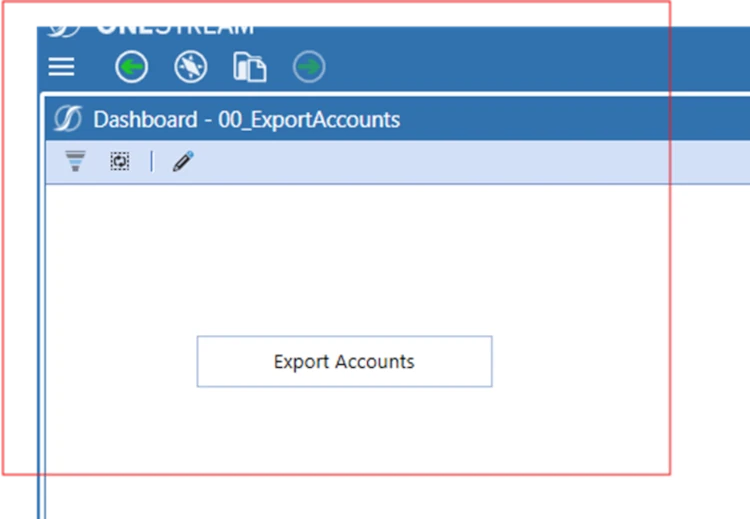
For this demonstration I will run it from a button on a dashboard.

Dashboard button for the OneStream CSV export

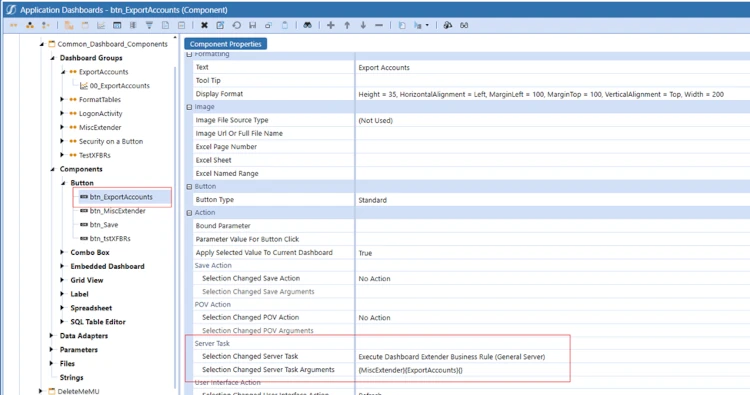
Calling the Business Rule from the Button.

Call the OneStream Business Rule from a button

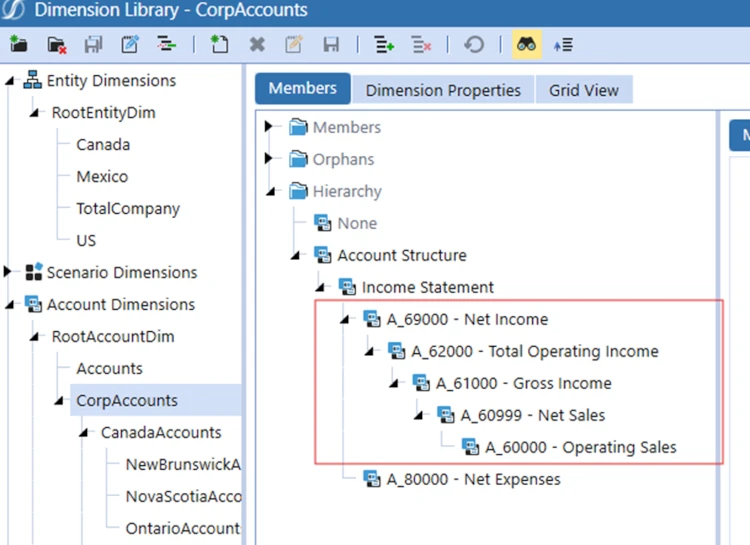
Which in this example will export the dimension members in my application from the CorpAccounts dimension.

CorpAccounts dimension selected for CSV export

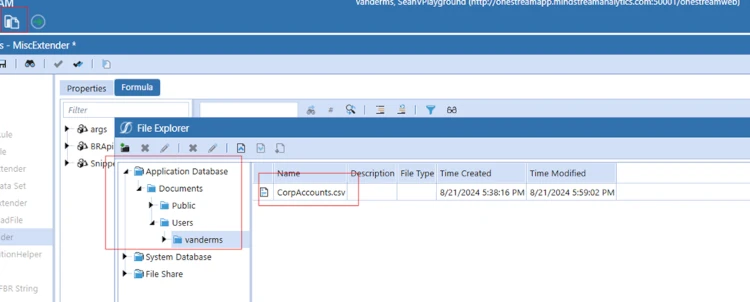
Which will export the children of the CorpAccounts dimension to a CSV file and write the file to the Application Database/Users/vanderms folder. (vanderms being my username in this application).

OneStream CorpAccounts CSV file in the user folder

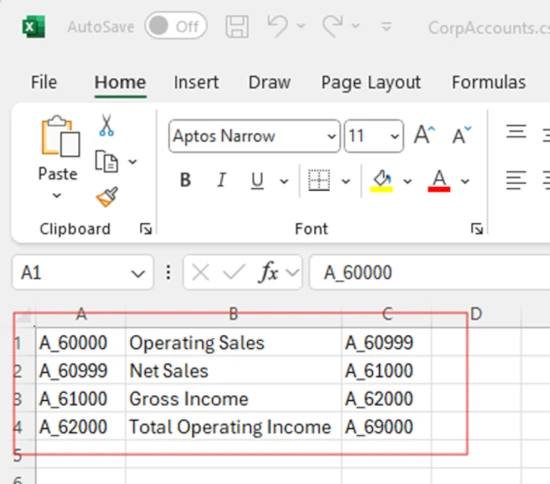
The CSV File now contains the members in the dimension.

Exported OneStream dimension members opened in Excel

Helpful functionality, that although in this example if exporting dimension members, I have also used it to export Cube Data, custom relational table data, as well as any data you can load into a VB Data Table.

Validate and Secure the CSV Export

Before releasing the function, test the OneStream export data to CSV process with a non-administrator account. Confirm that the user can write only to the intended folder, that the member filter returns the expected records, and that commas, quotation marks, line breaks, Unicode characters, and blank descriptions are handled correctly. Use a clear header row when downstream users need column definitions. For large exports, monitor memory use and execution time, avoid exposing restricted metadata or cube data, and document the file owner, retention period, and replacement behavior. This OneStream export data to CSV approach should also be retested after upgrades.

OneStream Export Data to CSV Resources

Explore MindStream guidance for OneStream data integration, OneStream dashboards, OneStream reporting, OneStream implementation, OneStream application support, and OneStream training. The official OneStream documentation provides current platform guidance.