rename file in OneStream File Explorer requires a controlled approach that preserves data, validates the destination, and records the result before cleanup.
How to Rename a File in OneStream File Explorer

I recently ran into a case where I needed to change the names of some files in File Explorer. I had another Business Rule running from a Data Management job that was creating the files and exporting them to the file share then moving them to the Application Database File Explorer so that Users could access them. I needed to then modify the name in some cases based on a couple of different business cases. I have moved and deleted files through code before so I assumed that this would be straightforward and build on what I already knew and had coded before. That didn’t turn out to be the case.
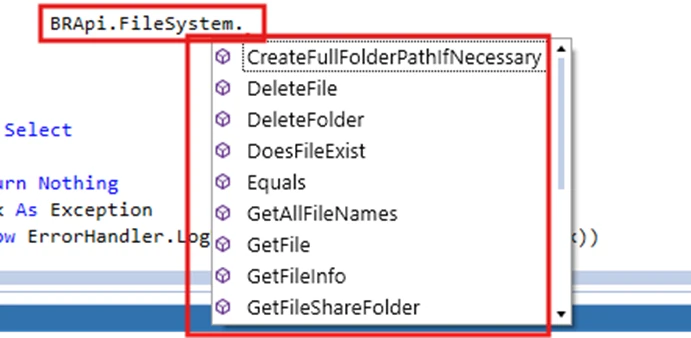
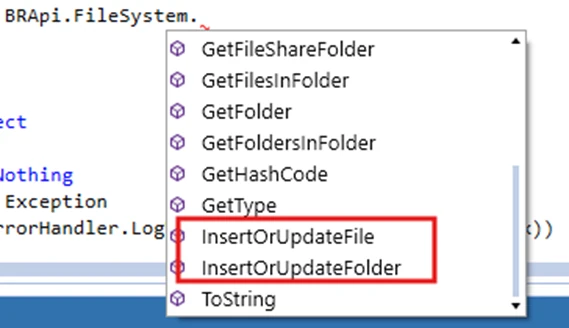
There are several BRApi.System functions related to file manipulation, however when I looked through them, I saw ones called DeleteFile, GetFile, InsertOrUpdateFile, nothing named ChangeName or Name. There was nothing that intuitively pointed me in the direction I wanted of changing the name of a file. In the end it did turn out to be straightforward, it just took a different approach and way of thinking about BRApi.FileSystem.InsertOrUpdateFile.
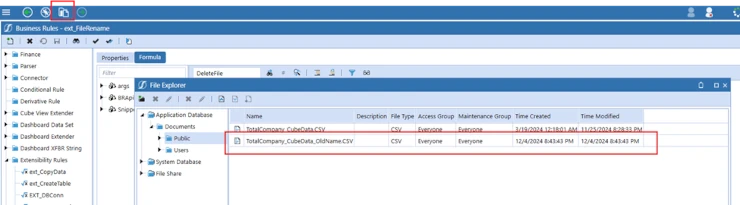
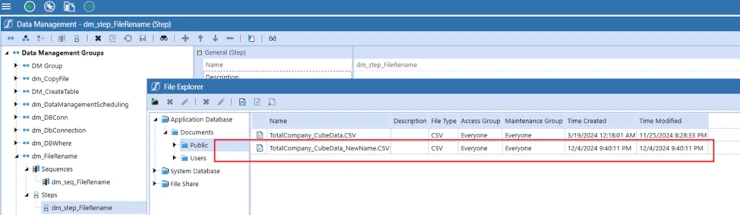
In the next screen shot I have a file, TotalCompany_CubeData_OldName.CSV that I want to change the name of to TotalCompany_CubeData_NewName.CSV.
Step 1
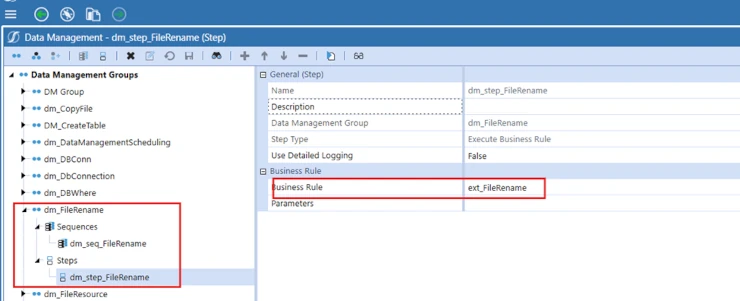
I created an Extensibility Rule that I could run from a Data Management Step.

Step 2
Using a XFFileEX Object and BRApi.FileSystem.GetFile, get the file to be renamed. Specifying that it is in the Application Database and passing the full path and name of the file.

Step 3
Then I created the code that will “rename” the file. Essentially what will happen is that in Step 2 I get the file to be renamed, then I will use BRApi.FileSystem.InsertOrUpdateFile to insert the file with the new name. BRApi.FileSystem.InsertOrUpdateFile takes a XFFile object. The XFFile object contains XFFileInfo object that contains the new name and the XFFileEx that contains the old file contents. So you pass the old file and its new name into BRApi.FileSystem.InsertOrUpdateFile.

Step 4
The catch is that you are not really renaming the old file. You are getting it and saving it with a new name. So, the old file still exists as well as the new file with the new name. This is easily resolved by using BRApi.FileSystem.DeleteFile to delete the old file.
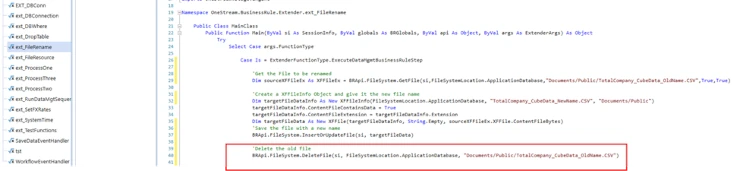
The code in its entirety
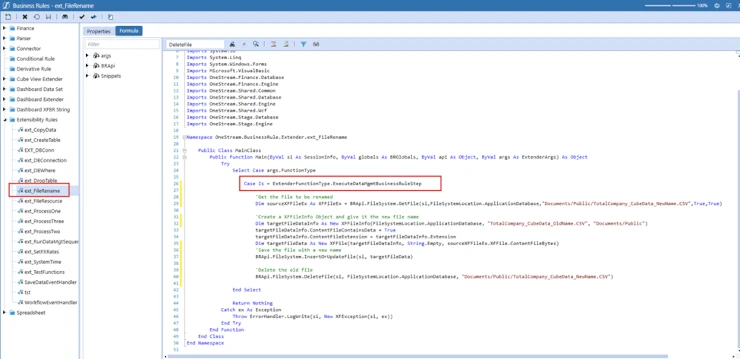
The different way of thinking about this for me was with BRApi.FileSystem.InsertOrUpdateFile. I had used it previously to get files from the file share and move them to the application database file system. In that case I was getting the file to move, with its name and then copying it to the new location using BRApi.FileSystem.InsertOrUpdateFile, however with the same name. Once I realized that with the XFFileInfo object that instead of using the original file name, as I was doing when I was moving files, that I could give it a new file name everything else fell into place. Now when I run this extensibility rule the file is copied, inserted with a new name and the original file is deleted.
Safe Rename Workflow and Validation
A reliable rename file in OneStream File Explorer process should verify the source path, target folder, and proposed filename before any write occurs. Confirm that the source file exists, the destination name is valid, and no file already uses that name. These checks prevent accidental overwrites and make the rule easier to support when it runs from a Data Management sequence.
Because the OneStream API creates a new file rather than renaming the existing record in place, treat the operation as copy, validate, and delete. After InsertOrUpdateFile finishes, confirm that the new file has the expected content and metadata before calling DeleteFile. Log both paths, the user or process that initiated the action, and the final result so administrators can trace failures without reproducing the job.
Test the rename file in OneStream File Explorer rule with empty files, larger exports, duplicate target names, invalid paths, and insufficient permissions. A scheduled rename file in OneStream File Explorer job should also confirm that its service account can read, create, and delete files in the target location. Run those cases in a nonproduction application first.
For batch processing, make each rename file in OneStream File Explorer operation independent and return a clear status for every item. Monitor the rename file in OneStream File Explorer results after upgrades, and retain enough log detail to distinguish a missing source from a failed write. Document the approved naming convention for every rename file in OneStream File Explorer request. A final rename file in OneStream File Explorer audit should compare the requested name, saved name, and cleanup result.
Related OneStream Resources
Continue with what OneStream is, OneStream implementation, OneStream training, Data Management progress, and OneStream CSV exports. Consult the official OneStream documentation for version-specific API details.
Contact
MindStream Analytics
To learn more about OneStream and how MindStream Analytics can help you improve your planning, reporting, and analytics, please fill out the form below.