Install NetSuite Smart View Mac Step by Step
NetSuite Smart View Mac brings planning data into Excel on macOS. Before installation, confirm the supported Excel version, your permissions, and the NetSuite credentials required for a successful connection.
| In order to install SmartView on Mac, we first need to create a folder called “wef” This is where we will save the manifest file. First, we need to determine our home user. To do this, open the terminal and write-out the following command: whoami |
 |
| As can be seen, the home user for me is jared. We now need to create the “wef” folder. It will be nested here and will look like this:
In my instance, is jared, so my folder would look like this:
|
|
| In order to create this folder, we will again use the terminal. Input this command into the terminal: |  |
mkdir /users/jared/Library/Containers/com.microsoft.Excel/Data/Documents/wef |
|
| We will now want to navigate to this folder in finder. We can do this pressing Shift + Cmd + G at the same time on our keyboard. This will make our screen look like this: |  |
| You may or may not see recent folders that you have gone to. In the search bar, paste the folder that was just created and then hit the return key. |  |
| Your screen should now look like this: |  |
| This is where we will be putting the XML file that will be generated in the next step. We will come back to this finder window. Minimize it for now. | |
| First, we need to log-in to the PBCS environment. The service URL should look like this: epm-a999999.epm.us6.oraclecloud.com). Paste this link into your browser. Your screen should look like this: |  |
| Log-in to your PBCS environment. By clicking Sign-in. Your screen should look like this: | |
|
|
|
| Pay attention to the URL. Delete the highlighted portion of the URL below and add /CreateManifest.html to the end of the URL. | |
|
|
|
| The new URL should look like this: | |
|
|
|
| And your screen should now look like this: |  |
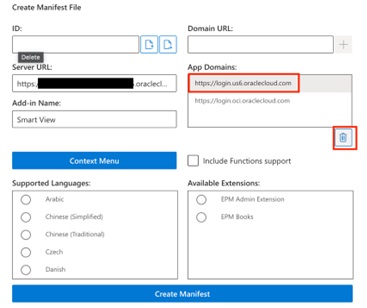
| In the Domain URL section, add https://login.oci.oraclecloud.com by clicking the plus button. |  |
| After adding, delete the original App Domain listed by selecting it and then click the trash icon.
You do not need to check anything here unless you will be updating dimension members. (Note: For admins who will be updating dimensions, you will need to check EPM Admin Extension in the bottom right |
 |
| This will prompt the XML file to be downloaded to your Mac. |  |
| Navigate to where this XML file was downloaded to and move it manually to “wef” folder that was created in Step 1. Your “wef” folder should now look like this: | 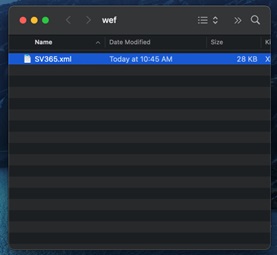 |
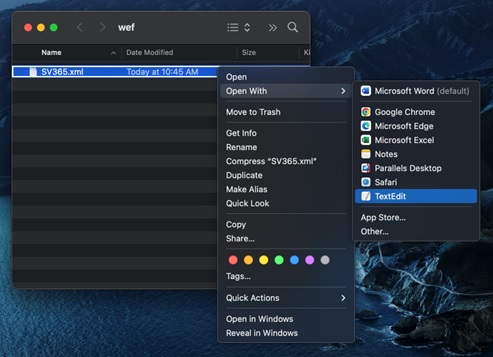
| Open the XML file in a text editor. | |
|
|
|
| Once the XML file is open it should look like this. Do not get overwhelmed. Only one small line needs to be added. | 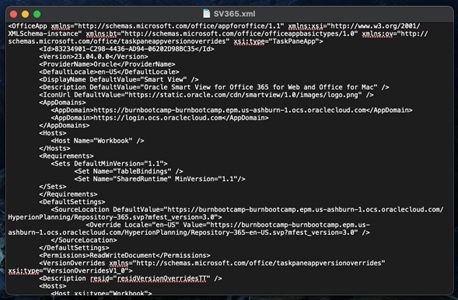 |
| Once inside the XML file, press cc and search for <AppDomains> inside the document. |  |
| Underneath <AppDomains>, we are going to write a new line. This line will contain the link in your browser that appears when you log out of PBCS. It is used to trigger the pop-up box in Smart View and is for security. Minimize the text editor and return to your PBCS environment. |
|
| Your screen should look like this: |  |
| Click Sign Out |  |
| Now, turn your attention to the link in the browser. It should look like this: | |
 |
|
| Take this URL and add this to the end of it /u1/v1/adminconsole . It should now look like this. |
|
 |
|
| Copy this URL to your clipboard and return to the XML file. Underneath <AppDomains>, you are going to create a new line that begins with <AppDomain> and ends with </AppDomain>, and has the URL sandwiched in between. It should look like this. |
|
|
|
|
| Save the file by pressing Cmd + S at the same time. You can now close the XML file. | |
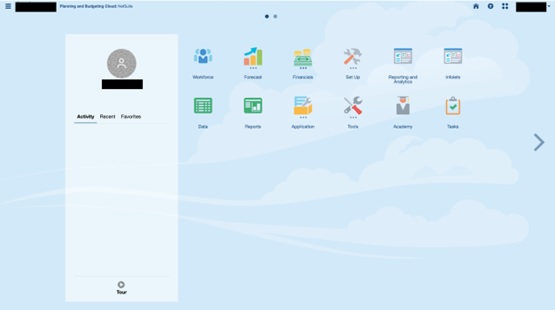



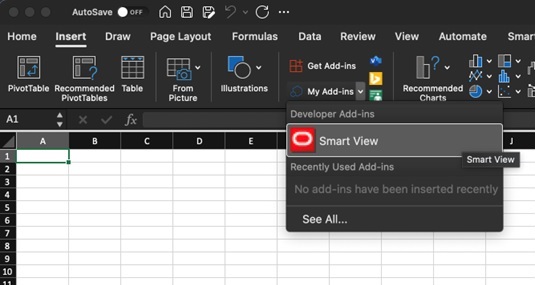
| Open Excel 365. (If already have it open, you will need to close Excel and re-open it). Go to the âInsertâ tab and select the drop-down icon next to My Add-ins. The Smart View add-in should now be listed under Developer Add-ins. Select Smart View to add it to your Excel. | |
|
|
|
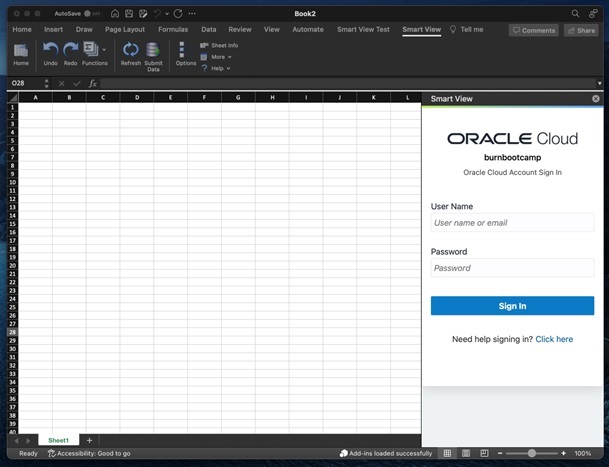
| To login to your environment, select the âSmart Viewâ ribbon and select the âHomeâ button to the left. This will open a panel in the right side of your excel prompting you to login. | |
|
|
|
| Enter your credentials and login to be connected to your environment. | |
|
|
|
| Smart View is now ready to use. | |
|
|


NetSuite Smart View Mac Troubleshooting
Test NetSuite Smart View Mac after each update. If NetSuite Smart View Mac does not appear, restart Excel and confirm that the extension is enabled. Also verify that macOS permits the add-in and that the network can reach the service.
When a NetSuite Smart View Mac connection fails, validate the URL, environment, user, and authentication method. Retest in a new session and record the exact error message.
NetSuite Smart View Mac Resources
Extend your NetSuite Smart View Mac setup with NetSuite consulting, NetSuite Planning and Budgeting, NetSuite Analytics Warehouse, NetSuite support, NetSuite Analytics Warehouse insights.