NetSuite Workforce: Powerful Configuration Guide
NetSuite Workforce supports accurate headcount and employee expense planning when its dimensions, members, data loads, and business rules are configured in the right sequence.
This practical guide explains the core setup decisions that keep workforce calculations, company rosters, and operating expense reports aligned.
It is important that the Workforce module is configured correctly for it to produce the right results. The following is a high-level glance at the configuration.
Workforce manages and tracks employee headcount and expenses. This includes analyzing, calculating, and reporting on headcount, salary, bonuses, taxes, health care expenses, and more. It also helps with planning for new hires, transfers, promotions, and terminations in the next planning cycle.
Configure NetSuite Workforce Dimensions
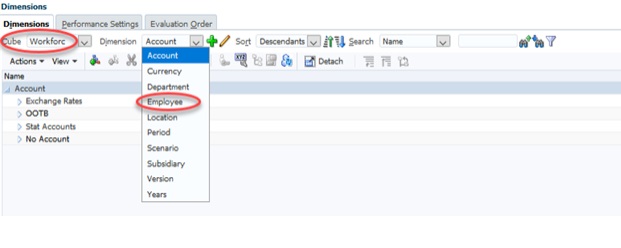
Workforce has its own cube and changes made within Workforce do not affect the other cubes. It has 10 dimensions compared to the Plan cube, which has 13. The Class, Item, Relationship, and Tracker dimensions are not configured for use in Workforce, and the Employee dimension is not configured for use in Plan.

Configure Workforce Accounts
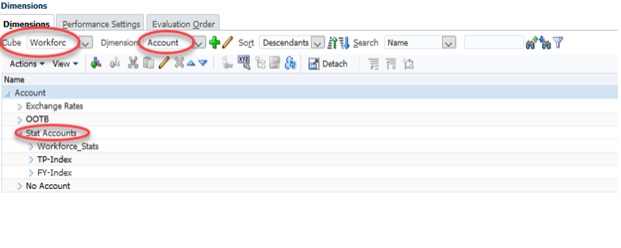
The account dimension in the Workforce cube has fewer members than the account dimension in the Plan cube. Workforce does not need all the income statement and balance sheet accounts used in the Plan and Detail cubes. Earnings, taxes, benefits, and other calculated employee information are pushed into expense accounts through a business rule so that they are included on OpEx forms and reports.
Manage Employees
Employees must be saved in the Employee Dimension for them to show on the Company Roster. Their data can be loaded from other sources or entered manually into the system. Smart View can be used to submit the data from another source system.
Add New and To Be Hired Employees
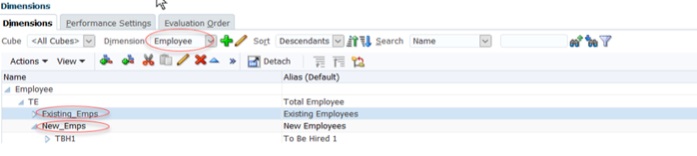
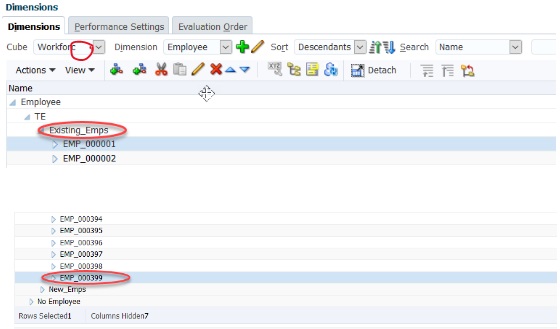
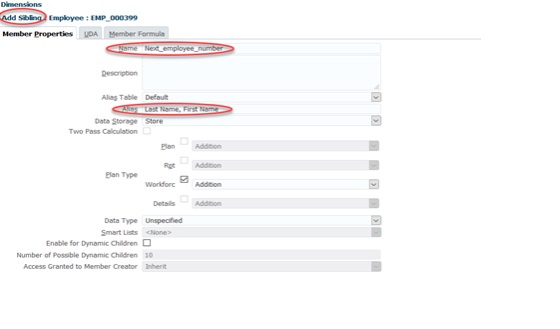
An employee’s number or name is added under the Existing_Emps roll-up. It is usually set up with an employee number for the member name and the employee’s actual name as the alias.
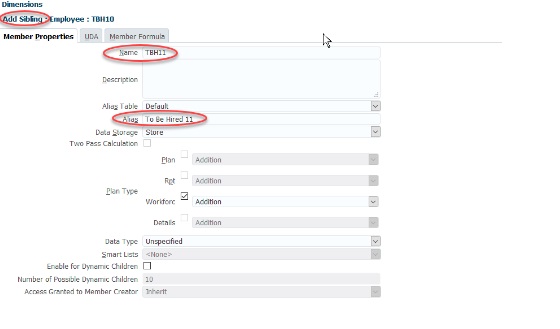
If there are open positions to be filled in the upcoming plan year, the member names TBH1, TBH2, and so on can be added under the New_Emps roll-up to hold a position.
To add a new employee, drill down to the Existing_Emps roll-up, go to the last member, and add a sibling. For open positions, drill down to New_Emps and add a sibling there using the next sequential number.
Load Employee Data and Run Rules
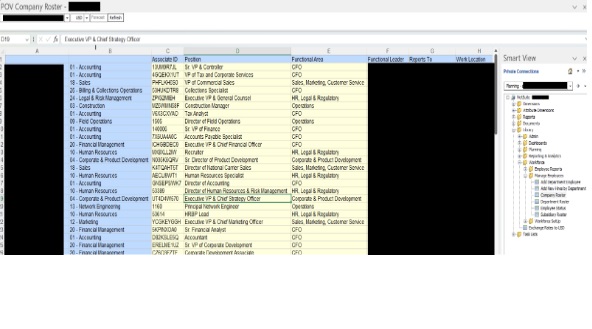
To load employee data using Smart View, make sure the spreadsheet is in the same format as the company roster and then submit the data. After the upload is successful, several business rules need to run. Run them in this order: Active Status, CalcComp, Admin – Clear Workforce Expenses, and CopyToPlan.
To kick off the rules automatically, open the Company Roster form in the cloud application and hit save.
Validate NetSuite Workforce Data and Rules
After configuring NetSuite Workforce, validate a small employee sample before loading the full roster. Confirm that aliases, hire dates, status, salary, benefits, taxes, department, location, and other planning drivers map to the expected members.
Then run the required rules in order and reconcile calculated compensation and headcount totals to the source data. Review security, forms, Smart View submissions, and the transfer of workforce expenses to Plan. Document ownership and refresh timing so each planning cycle follows the same controlled process.
Configure Setup Forms
The Setup tab on the Workforce module lists forms for the Pay Schedule, Annual Assumptions, Monthly Assumptions, and Location Assumptions. This is where values used in business rules and calculations for employee expenses are entered.
MindStream Analytics
Have questions for our team of NetSuite experts? Please complete the form below and we’ll get back to you shortly.
More NetSuite Workforce and Planning Resources
Continue your planning research with our NetSuite Analytics Warehouse introduction, NSAW data refresh guide, NetSuite Smart View installation guide, NSAW Shopify connector overview, and latest NSAW updates. Consult the official Oracle NetSuite Planning and Budgeting documentation for current product guidance.