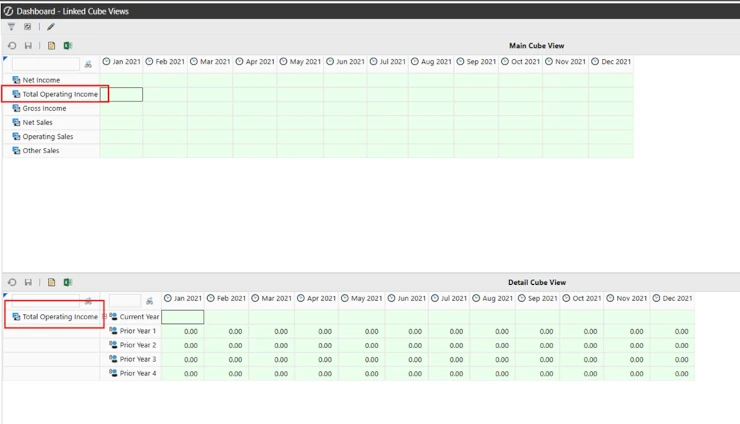
The use case is that you want to have 2 cube views on a single dashboard that are linked to each other, 1 dependent on the selections in the other. When a user clicks on a data cell on the first cube view, the second cube view on the dashboard automatically updates with data related to the first cube view.
In this example I will show you how to link 2 cube views in this way, passing the Account from the first cube view to the second cube view, showing more detail related to the account clicked on in the first cube view.
You are not limited to linking on just the account, you can pass all or any combination of the dimension members that you want.
The screenshot below shows the desired outcome. Net Income for Jan 2021 is selected on the first cube view and the second (detail) cube view shows 5 years of data for Net Income. Selecting any other account data cell will change the second cube view to show only that account.

Creating the Main and Detail Cube Views
Step 1. You will need to create 2 cube views that logically make sense to connect. In this case I have 2 cube views that both have accounts on the rows, and I will be linking them on Accounts. In this case they will be called cv_Linked_Main and cv_Linked_Detail. Cv_Linked_Main will be dependent on cv_Linked Main.
cv_Linked_Main – Note the Account definition on the rows 

Setting Up the Bound Parameter in the Main Cube View
Step 2. The parameter is not defined in the Parameters section as you would expect. In this case the parameter is defined in the Originating Cube View, in this case cv_Linked_Main. Under the General Settings, Navigation Links, Bound Parameter Names. It is here that you type in the name of what you want the bound parameter to be. It does not exist in the parameters section under the Dashboard Maintenance unit with the other parameters.

Configuring the Dashboard Components
In this case the bound parameter that I setup is called “cvp_LinkedAccount”.
Notice how this parameter doesn’t exist in the parameters section under the dashboard maintenance unit.

Linking Cube Views with User Interface Actions
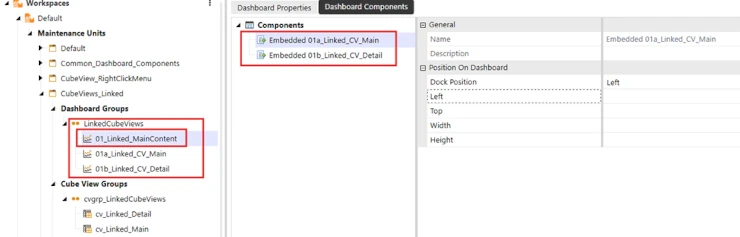
Step 3. I placed the 2 cube view components in their own dashboard components and placed those into the main dashboard component. In this step I set the cv_Linked_Main component to refresh the dashboard containing the cv_Linked_Detail component whenever there is a Selection Changed User Interface Action (a user clicks on a data cell on the main cube view).

Screenshots showing the Dashboard setup.


Visualizing the Dynamic Update Results
The result is a Dashboard with 2 cube views on it that when a user clicks on a data cell on the first Cube View, the second Cube View updates with data for the Account of the data cell that was clicked on.
Switching Between Accounts in Cube Views
Screen shot showing what it looks like when an Operating Sales data cell is clicked on.
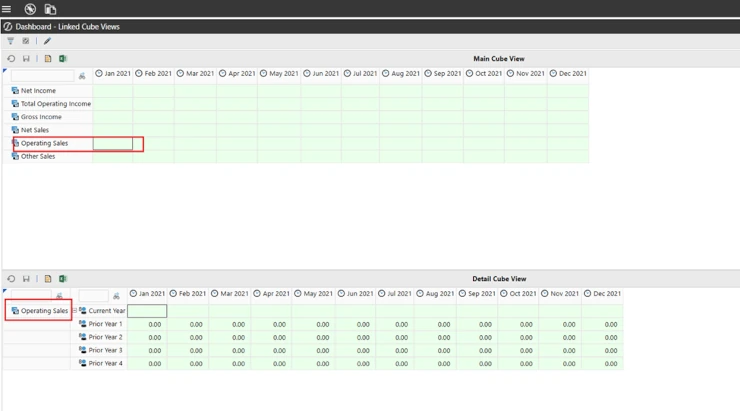
Screen shot showing what it looks like when a Total Operating Income data cell is clicked on.