OneStream divide by zero formatting gives finance teams a clearer, governed process for this common OneStream task.

How OneStream divide by zero formatting Works

While working in OneStream, users may experience formatting issues when trying to get a ratio by dividing a specific POV by another POV. A formatting issue happens when the denominator is 0, and since you can’t divide by 0, formatting the equation improperly will result in a formatting issue when viewing the results. This issue can appear while using cube view math, member formulas, or business rules. If you don’t use the proper expressions while writing your equation, you will see the issue arise when you open a CubeView or a Dashboard that is using the expression.

Cube View Math Formatting Error
onestream select member filter

onestream division by zero error

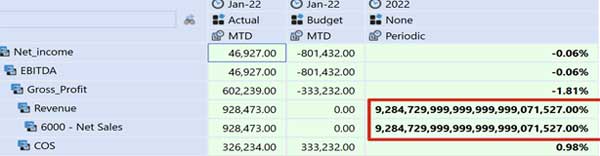
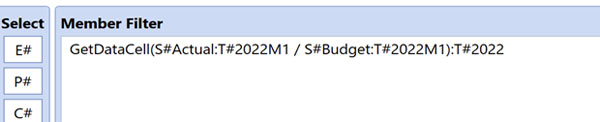
The first example is trying to use a GetDataCell expression in the last column to retrieve the year-over-year result. The GetDataCell being used can be seen below, followed by the results of the data explorer view.

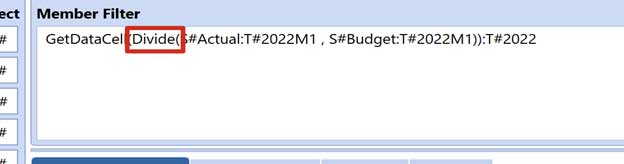
As you can tell from the results, OneStream spits out a long string of numbers for the line item that has a 0 as the denominator. To fix this issue using cube view math, make sure you use the proper GetDataCell Divide Expression.
divide by 0 onestream

onestream empty cell divide by 0

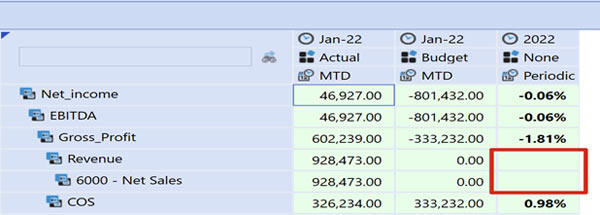
After updating your column GetDataCell expression, you can see that OneStream shows nothing for the result as you can’t divide by 0.

Business Rule Formatting Error

The same issue occurs when dividing using any kind of business rule. For example, below, I am using an XFBR to retrieve the data, and you will see that the result is the same as the cube view example.
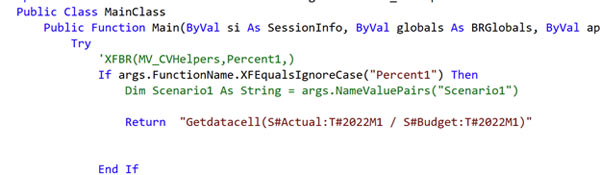
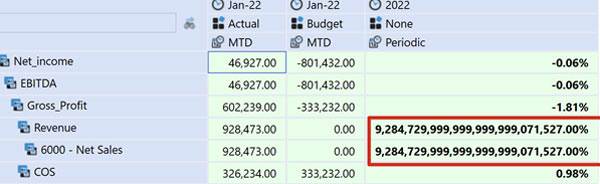
xfbr code error divide by zero

onestream business formatting error

Using OneStream’s divide function will fix this issue and ensure your results are recorded correctly.
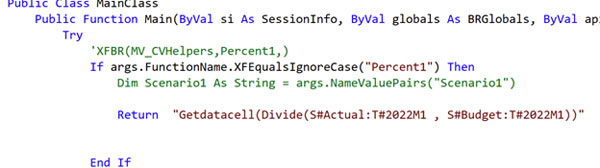

onestream divide by zero code fix

Contact

MindStream Analytics

Want to learn more about OneStream Software? Please complete the form below and we’ll get back to you shortly.

Implementation and Validation Checklist

OneStream divide by zero formatting should clearly communicate unavailable ratios while preserving trusted calculations, consistent presentation, and useful context for every finance user.

Start by identifying whether the denominator can legitimately be zero or missing. A safe OneStream divide by zero formatting design should distinguish an unavailable ratio from a true zero result instead of displaying a misleading percentage.

Review the Cube View formula, member filters, scenario, time, and data unit that supply the numerator and denominator. Test positive, negative, zero, and NoData intersections. Apply conditional logic before division, then return a consistent blank, text label, or approved numeric value.

Keep formatting separate from calculation intent. OneStream divide by zero formatting should remain readable in Cube Views, dashboards, exports, and books. Confirm that scaling, decimal precision, colors, and symbols behave consistently for every supported output.

Test the completed rule with representative users and security roles. Document the formula, expected zero behavior, validation cases, owner, and deployment date. Recheck the configuration after changes to accounts, scenarios, Cube Views, business rules, or platform versions.

Include the zero-denominator case in regression testing for every report that reuses the calculation. Compare the browser, Excel Add-In, exported file, and scheduled book outputs so finance users see the same result everywhere. If the business meaning differs by account or scenario, document that exception instead of embedding an unexplained display rule. Clear ownership and test evidence make later troubleshooting faster and prevent a cosmetic fix from hiding a data-quality problem.

Before publishing, compare the result with an independently calculated sample and obtain finance-owner approval. Keep the test workbook, screenshots, expected output, and release notes together so future administrators can reproduce the decision. A short control record also helps auditors understand why blank, zero, text, or another fallback was selected for the report.